
Webflow SEO is mostly configuration. Webflow already serves pre-rendered HTML, generates a sitemap and builds responsive image variants. Your job is to set eight things correctly: the staging domain, titles and meta descriptions, CMS templates, indexing rules, canonicals, redirects, images and schema. The costly mistakes are quiet ones, like a staging toggle that blocks crawling instead of indexing, or a CMS template with no SEO fields bound.
Below, each setting comes in the order you would configure a new site, with its exact panel as of October 2026 and the Google documentation it answers to.
What Webflow handles before you touch a setting
Webflow's biggest SEO advantage is simple: the content is in the HTML. We fetched Webflow's own SEO feature page with a plain curl request on 9 October 2026, and the body copy, the canonical tag and the srcset image variants were all in the first response. There is no rendering step for Google to wait on, the opposite of the problem in our guide to React SEO.
Webflow also handles these by default:
- Hosting and delivery. Webflow's SEO page describes hosting on AWS across "100+ data centers worldwide", and its hosting page says DDoS and bot protection are powered by Cloudflare.
- A sitemap. Webflow regenerates
sitemap.xmlevery time you publish, with a<lastmod>date on each URL. - Responsive images. Images uploaded through the Designer or a CMS image field get up to seven size variants and
srcsetandsizesattributes. - A canonical tag, once you give Webflow a base URL (step 5).
What Webflow does not do is make decisions. It will publish fifty posts with the same title tag or let a redirect fire in the wrong order. The rest of this guide is about those decisions.
Step 1: Keep the webflow.io staging domain out of Google
Every Webflow site also lives on a yoursite.webflow.io subdomain. If Google indexes it, a full duplicate competes with the real site.
The setting is in Site settings > SEO > Indexing: set Staging indexing to off, save and publish. Read Webflow's own description of what that does carefully. Per its help article on disabling indexing, it "will publish a unique robots.txt only on the subdomain that tells search engines to ignore this domain."
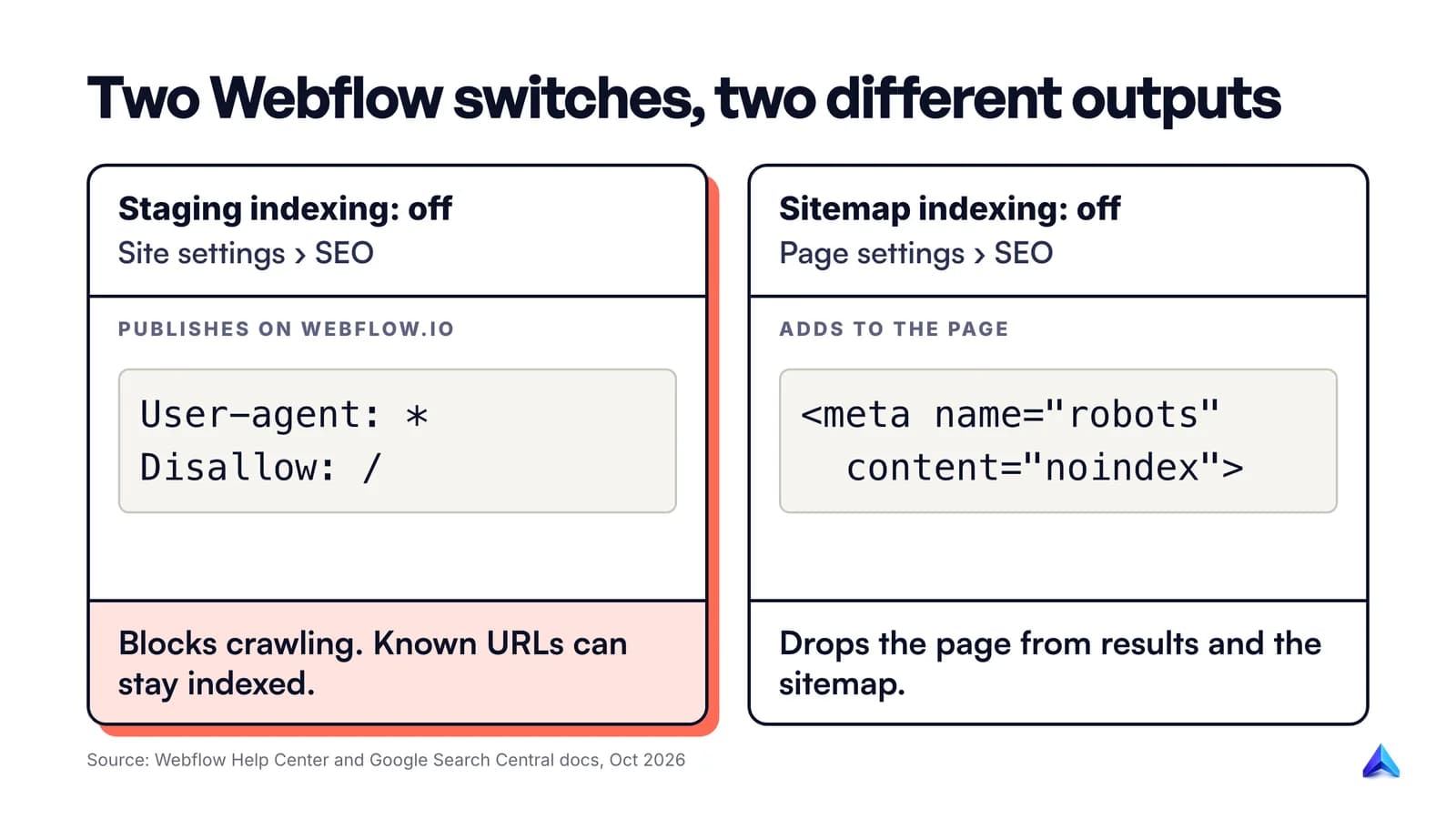
That is a crawl block, not a noindex tag, and the difference matters. Google's robots.txt documentation says plainly that robots.txt "is not a mechanism for keeping a web page out of Google", and that a disallowed URL can still be indexed if it is linked from somewhere else. So:
- On a new site, turn the toggle off before you share a single staging link. If Google never discovers the webflow.io URLs, the robots.txt block is enough.
- If staging URLs are already in Google, the block can keep them there as bare URLs with no description. Google can no longer fetch those pages, so a canonical or noindex on them would go unseen. Request removal through Google's Removals tool, as Webflow's own article suggests, and delete every link that points at webflow.io.
- Check it. Search
site:yoursite.webflow.io, and openyoursite.webflow.io/robots.txtafter publishing to confirm theDisallow: /rule is live.
Our guide on how to check if a page is indexed covers the Search Console side.
Step 2: Write titles and meta descriptions for static pages
For any static page, open the Pages panel, hover the page, click the cog, and scroll to SEO settings. You will find a Title Tag and a Meta Description field. Fill both on every page, including the ones nobody thinks about, such as the contact and legal pages.
Google's title link documentation asks for three things: every page should have a title in its <title> element, it should be "descriptive and concise", and it should avoid keyword stuffing. For a service business, that means Commercial Plumbing in Leeds | Brand rather than Home | Plumbing, Plumber, Plumbers Leeds.
Meta descriptions work differently. Google's snippet guidance says snippets come mainly from page content, with the meta description used when it describes the page better. There is no length limit, only truncation. Write one plain sentence on what the page offers and to whom.
While you are in the panel, check the slug. Short, lowercase, hyphenated, and stable, for the reasons in our URL slug best practices. Every slug change you make after launch creates a redirect to manage (step 6).
Step 3: Template your CMS pages so every item gets unique metadata
Most Webflow SEO problems at scale come from the CMS. A blog or a set of location pages renders from one Collection template, and whatever you set there applies to every item.
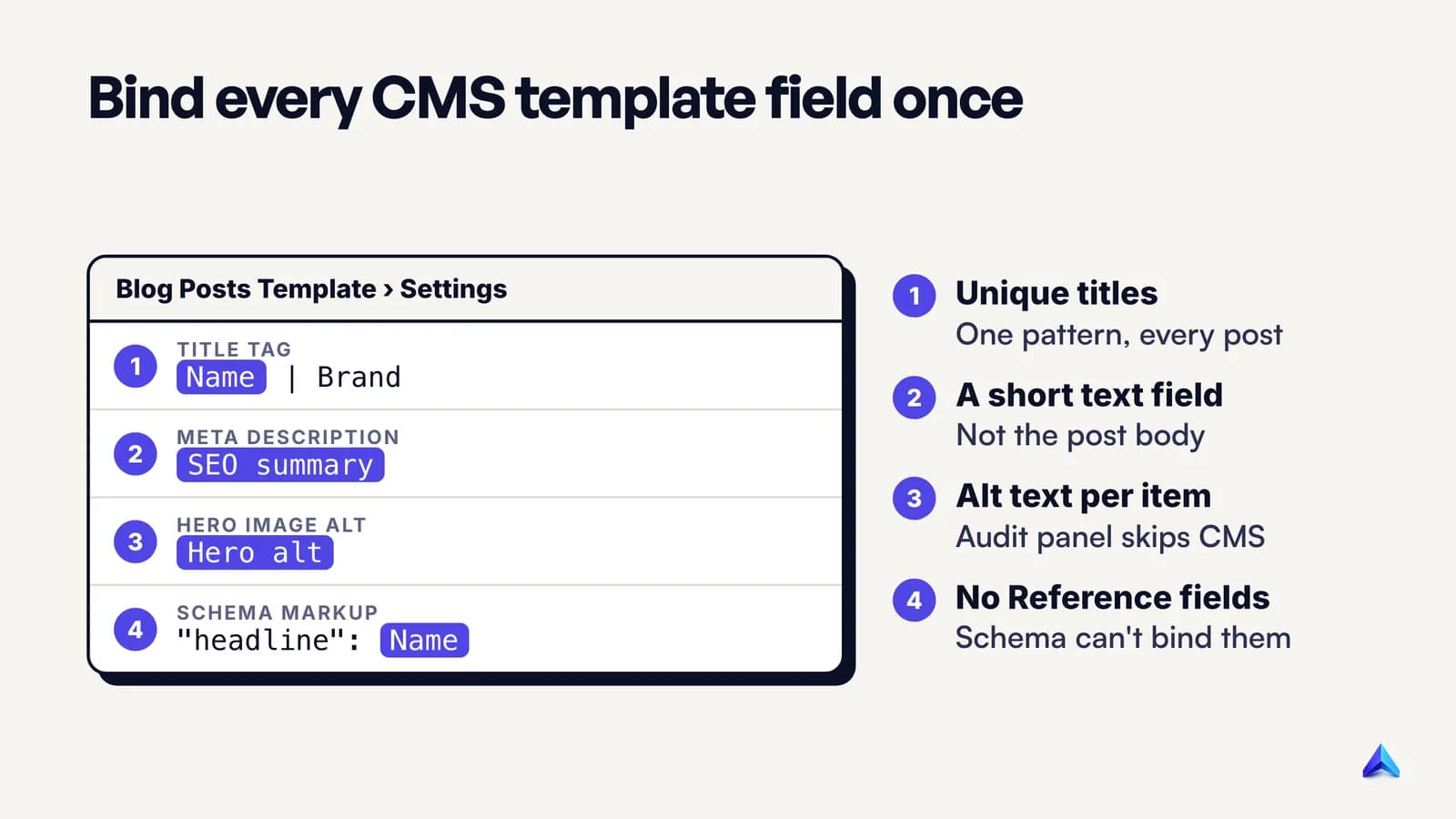
Hover the Collection template in the Pages panel and open its settings. Unlike a static page, the SEO and Open Graph fields here accept dynamic values: click Add field and Webflow inserts a Collection field, then shows a preview of how the result will look in search. A workable pattern for a blog:
| Template setting | Bind it to | Example output |
|---|---|---|
| Title Tag | Name + static text | How to Price a Kitchen Refit - Brand |
| Meta Description | A plain-text "SEO summary" field | One sentence written per post |
| Open Graph image | The post's main image field | A unique share image per post |
| Alt text on the hero image | A plain-text "Hero alt" field | Fitted oak kitchen in a terraced house |
Three habits make this hold up:
- Create a dedicated SEO summary field. Binding the meta description to the post body or a long excerpt produces cut-off sentences. A separate plain-text field forces a writer to fill it in.
- Use folders on purpose. In the template's General > Parent folder setting you can serve items under a path like
/resources/blog/post-name. Pick the structure before you publish, because changing it later means redirecting every item. - Noindex at the item level, not with robots.txt. On paid Site plans, each CMS item has a Sitemap Indexing switch under Item details. Turning it off adds a
noindexmeta tag to that item and removes it from the sitemap. Use it for thin tag pages, expired offers or test entries. If a whole Collection should never be public, switch off its template under Publish settings instead.
Generating hundreds of pages from a spreadsheet is easy in Webflow. The bindings make the metadata unique, not the content, so each page still has to deserve to exist.
Step 4: Decide what gets indexed with the sitemap, robots.txt and noindex
These settings control discovery and indexing, and they are easy to confuse. All but the per-page switch live under Site settings > SEO.
| What you want | Webflow setting | What gets published |
|---|---|---|
| List every public page for search engines | Sitemap > Auto-generate sitemap on | /sitemap.xml, regenerated on publish, referenced in robots.txt |
| Keep one page out of search results | Page settings > SEO settings > Sitemap indexing off | <meta name="robots" content="noindex">, page dropped from sitemap |
| Stop bots crawling a folder (low-value or heavy pages) | Indexing > robots.txt field | A Disallow rule; the page stays in the sitemap |
| Opt out of AI crawlers | Indexing > Traffic control toggles | robots.txt rules for a group of known bots |
The second and third rows are where sites go wrong. Webflow's help center warns that a page blocked through robots.txt is still listed in the auto-generated sitemap, and that to remove a page Google has already indexed you should use the Sitemap indexing toggle, not robots.txt. Google's noindex documentation explains why: if robots.txt blocks a page, "the crawler will never see the noindex rule." Never apply both to the same URL. One more dependency: the per-page toggle only works while the auto-generated sitemap is switched on.
Three sitemap details: /sitemap.xml cannot be deleted once published, even if you switch to the Custom sitemap.xml field; Webflow already lists the sitemap in robots.txt, so adding it by hand gives you two; and with Localize on, only the auto-generated sitemap includes hreflang entries.
Google uses <lastmod> only when it is consistently and verifiably accurate. Webflow updates each URL's timestamp when changes to that page are published, which is the behaviour Google wants. Switch to a custom sitemap and you take on keeping those dates honest yourself.
The Traffic control toggles allow or disallow groups of search crawlers and AI bots, including GPTBot, ClaudeBot, PerplexityBot and OAI-SearchBot. Both groups are allowed by default, and Webflow itself warns that blocking them can reduce visibility in AI-powered search. The same panel can send a Content-Signal header, which Webflow describes as a proposed standard, not an accepted one.
Step 5: Set a global canonical, then override only where you need to
Go to Site settings > SEO > Global canonical tag URL and enter your base URL. Webflow joins it to each page's slug to write a canonical tag on every page, which gives each page the self-referencing canonical Google recommends. Our explainer on the self-referencing canonical covers why that tag is worth having even with no duplicates.
Webflow's rules for the field are strict:
- Include the protocol:
https://. - Match your default domain. If it is
www.yourdomain.co.uk, include thewww. - No trailing slash, or every subpage canonical ends up with a double slash like
//contact. - If a tool such as Google Tag Manager already injects a canonical, leave this field empty. Two canonical tags on a page can lead search engines to ignore both.
For a static page that should hand its ranking credit elsewhere, such as a campaign variant of a landing page, open its SEO settings and fill Page canonical URL with the full absolute URL. Webflow documents this override for static pages; CMS items take their canonical from the global setting.
Google's canonicalization documentation calls redirects and rel="canonical" strong signals and sitemap inclusion weak, and warns against using noindex to pick a canonical, because that drops the page from Search entirely.
Step 6: Redirect every URL you change
Redirects live in Site settings > Publishing > 301 redirects and need a paid Site plan or a paid Workspace. The easy path is built into slug edits: when you change a slug in Page settings, tick Permanently redirect the old URL to this new one and Webflow writes the rule for you.
For anything else, Webflow's redirect documentation has details that most guides skip:
- The old page has to go first. To redirect an existing static page, delete it, save it as a draft or change its slug. For a CMS item, archive, delete, unpublish or draft it.
- Use capture groups for folders.
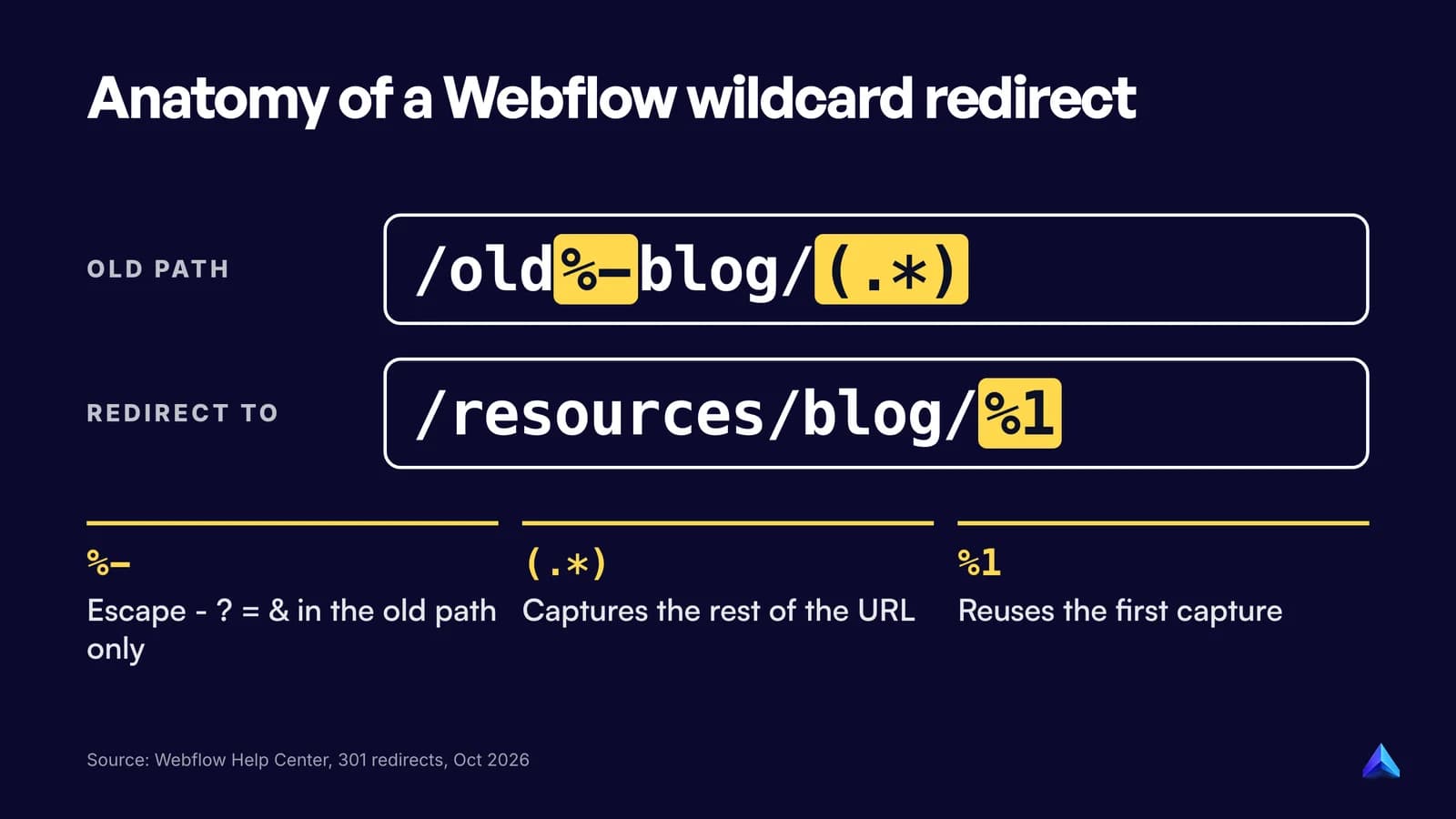
/blog/(.*)redirected to/resources/blog/%1moves every post in one rule. Multiple groups work too:/blogs/(.*)/(.*)to/articles/%1/%2. - Escape special characters in the old path only. Characters such as
-,?,=and&need a%in front, so?category=foodis written%?category%=food. - Watch the order. Webflow runs rules oldest first. A broad wildcard added early will catch URLs before a specific rule added later. Sort the list by Date created to see the real order.
- Drop the slash before a query string. Webflow strips it before matching, so
/slug/%?param%=valuesilently fails. Write/slug%?param%=value. - Localized paths need their own rules.
/old-urland/es/old-urlare two redirects.
Webflow has no hard cap on rules but recommends staying under 1,000, because every rule is stored in the site's manifest.json that browsers download. Prefer one wildcard over hundreds of one-to-one lines. If you are unsure which status code a move needs, our guide to what a redirect is explains permanent and temporary redirects in plain terms.
Test by loading a few old URLs in a private window. A rule that does not fire throws no error; you only find out from a 404.
Step 7: Set up images: alt text, formats and responsive variants
Alt text is set once on the asset and inherited everywhere. In the Assets panel (shortcut J), click an image's cog and write a description in the Descriptive field, or choose Decorative for dividers and icons. To change the text for one placement, select the image on the canvas, open Image settings and switch the Alt text dropdown to Custom description.
Two places escape that inheritance. Images inside a rich text element take their alt text from the rich text itself, so edit them through the image's wrench icon or in the Collection item. CMS images need a plain-text field on the Collection, bound through the purple dot in the Alt text dropdown, as in step 3. Google's image SEO guidance calls alt text "the most important attribute" for image metadata, so it is worth the extra field.
Formats next. The expanded Assets panel converts JPEG and PNG files to WebP or AVIF, and the Collections panel has a Compress assets option for CMS images. Google Search supports both formats. Know the catches first:
- The originals are replaced, and you cannot convert back. Download or back up anything you want to keep.
- AVIF is poorly supported for Open Graph images, so use WebP for anything that becomes a social share image.
Responsive variants are automatic, with gaps. Webflow's responsive images article says variants are generated for inline JPG, PNG and WebP images, up to seven widths from 3200px down to 500px. They are not generated for images in rich text elements, for background images, or for images added through CSV import or the API. If you migrate a blog by CSV, your post images arrive at full size. Resize them before import or re-upload them in the Designer. The full checklist for file size and naming is in our guide to optimizing images for SEO.
Step 8: Add schema in the Schema markup field
Webflow now has a native place for structured data. In Page settings, scroll to Schema markup, paste JSON-LD or click Generate schema markup to have Webflow AI draft it, then save and publish. It needs a paid Site plan or paid Workspace. Markup here goes in the <head>; markup in the Before </body> tag custom code box goes at the bottom. Both work for Google, which recommends JSON-LD. Use one location per page to avoid duplicates.
On a Collection template, bind fields into the JSON so each item gets its own values: the post name into headline, the date field into datePublished, the main image into image. Webflow's schema documentation lists the fields you can bind (plain text, image, link, number, date, option and a few others) and the ones you cannot: Reference, Multi-reference and Multi-image fields are not supported. Author names stored as a reference to an Authors Collection therefore need a plain-text copy on the post if you want them in Article markup.
Be selective about types. Google's documentation updates page records that the FAQ rich result "will no longer appear in Google Search starting May 7, 2026." FAQPage markup still describes your content to other systems, but it will not earn an expanded result in Google. Check that a type is in Google's search gallery before you spend time on it, and run every template through the Rich Results Test or the Schema Markup Validator after publishing.
What Webflow's AI audit checks, and what it misses
Webflow's Audit panel, opened from the left toolbar, scans the current page or the whole site and flags missing image alt text, meta titles, meta descriptions and schema markup, alongside accessibility issues. With Enable Webflow AI switched on under Workspace Settings > General, it can generate the missing pieces: alt text in bulk, title and description drafts, and schema. Team and Enterprise customers also get AEO agents with a Recommendations dashboard. All of this requires a paid plan, per Webflow's help center in October 2026.
It is a useful lint. It is not an SEO review, and Webflow's own documentation lists the blind spots:
- It does not check alt text on images inside components, lightbox elements or the CMS, so a blog's post images are outside its view.
- AI generation only works in your primary locale. Secondary locales need their titles, descriptions, alt text and schema written by hand.
- It checks for missing fields, not wrong ones. A title tag that reads "Home" passes.
Read every generated description before accepting it; a generic one is barely better than none.
It also misses the costliest issues, like an indexed staging domain or a misordered wildcard redirect. Those need a crawl. Our technical SEO audit walkthrough covers the full set of checks; Project Rankup's Content Audit Studio can review any live URL for on-page, content and AI-answer issues once the technical basics are in place.
A launch checklist for Webflow sites
Run this before you connect the custom domain, and again after any redesign:
- Staging indexing off;
yoursite.webflow.io/robots.txtshowsDisallow: /. - Global canonical set with
https://, the rightwwwchoice and no trailing slash. - Every static page has its own title tag and meta description.
- Every Collection template binds title, description, Open Graph image and image alt text to fields.
- Auto-generated sitemap on; submitted in Google Search Console.
- Thin or utility pages (404, thank-you pages, test CMS items) switched to Sitemap indexing off, not blocked in robots.txt.
- robots.txt contains only crawl rules you can explain, and no duplicate sitemap line.
- Old URLs mapped in 301 redirects, specific rules before wildcards, tested in a private window.
- Large JPEG and PNG assets converted to WebP, with originals backed up.
- Schema in one location per page, validated, with no Reference fields bound.
A month after launch, Search Console's Pages report shows whether the indexing choices worked.
Frequently asked questions
Is Webflow good for SEO?
Yes, for most marketing sites. Pages are served as complete HTML from Webflow's hosting, with responsive images and an automatic sitemap, and every core setting (titles, canonicals, redirects, robots.txt, schema) has a native field. The limits are in judgement, not capability: Webflow will publish duplicate titles or an indexed staging site if you let it.
Do I need an SEO plugin or app for Webflow?
Usually not. Titles, meta descriptions, Open Graph data, canonicals, 301 redirects, robots.txt, the sitemap, alt text and schema markup are all built in. Apps from the Webflow Marketplace add extras, but none of the settings in this guide need one.
Is Webflow or WordPress better for SEO?
Neither ranks better by default. WordPress gives you more control and a large plugin ecosystem, at the cost of maintaining themes, plugins and hosting. Webflow bundles hosting and outputs clean HTML, with fewer things to break and fewer things to extend. The content you publish and the settings above matter far more than the platform.
Why is my webflow.io site showing up in Google?
Either Staging indexing was still on when Google found it, or it was turned off after the staging URLs were already indexed. The toggle publishes a robots.txt block, which stops crawling but does not remove URLs Google already knows. Request removal with Google's Removals tool and remove any links to the webflow.io address.
How do I noindex a page in Webflow?
For a static page, open Page settings > SEO settings and switch Sitemap indexing off. For a CMS item, use the Sitemap Indexing switch under Item details, on a paid Site plan. Both add a noindex meta tag and remove the page from the sitemap. Do not also block the page in robots.txt.