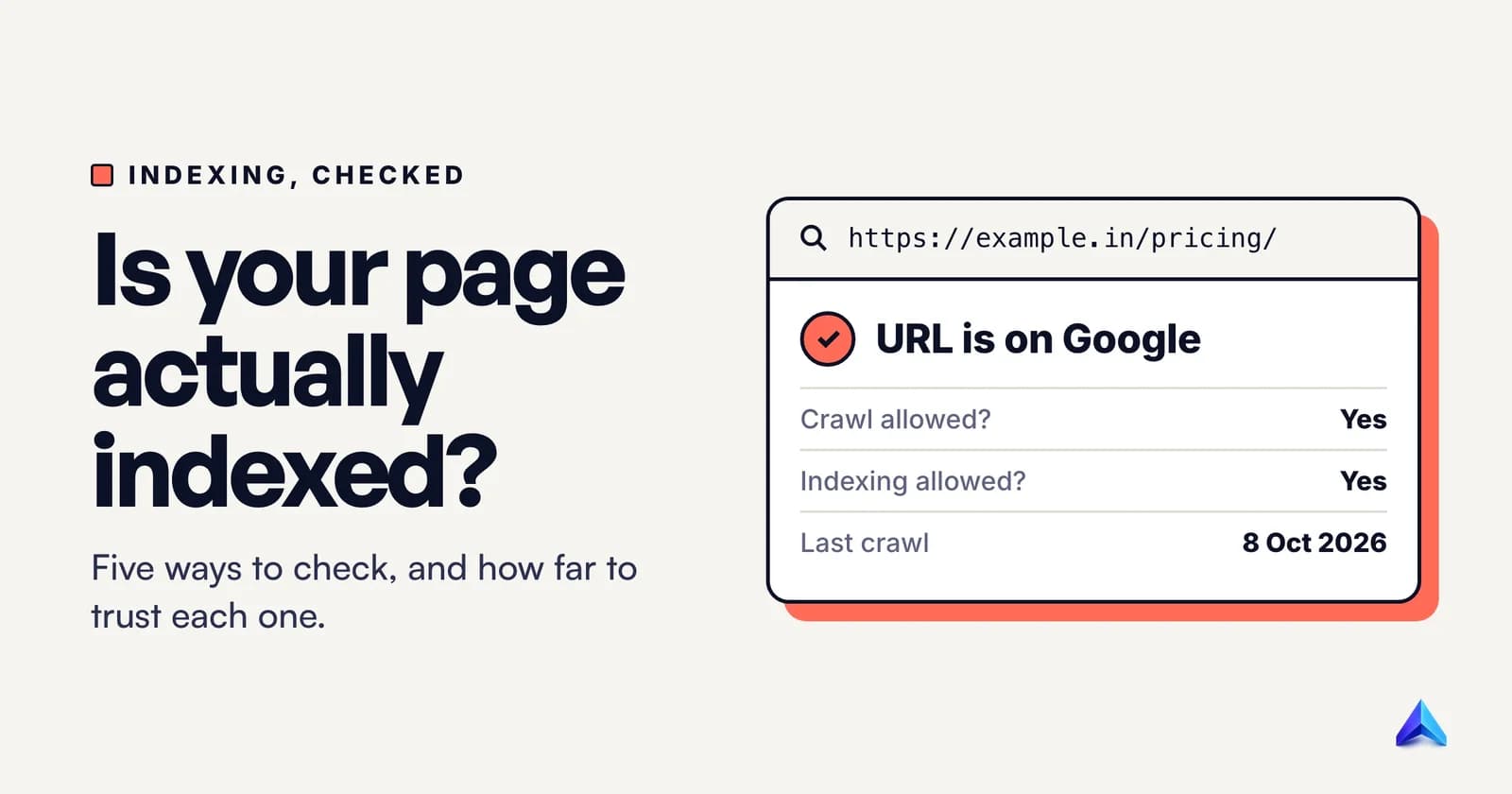
To check if a page is indexed, paste its full URL into the URL Inspection tool in Google Search Console. "URL is on Google" means it is indexed; "URL is not on Google" means it is not, and the tool says why. No Search Console access? Search Google for site: plus the exact URL. A result proves the page is indexed. No result proves nothing.
That last sentence is where most guides go wrong. They treat every method as equally good, when each one answers a slightly different question and some can only give you half an answer. Below are the five methods worth using, what a yes and a no from each one actually prove, and what to do once you know.
Which method should you use?
Use the one that matches how many pages you are checking and whether you own the site. For one page on your own site, URL Inspection is the only method that gives a definite yes or no plus the reason. For a whole site, use the Page indexing report. For a few hundred specific URLs, use the URL Inspection API. The site: search is the fallback when you have no Search Console access, for example when checking a client's or competitor's page.
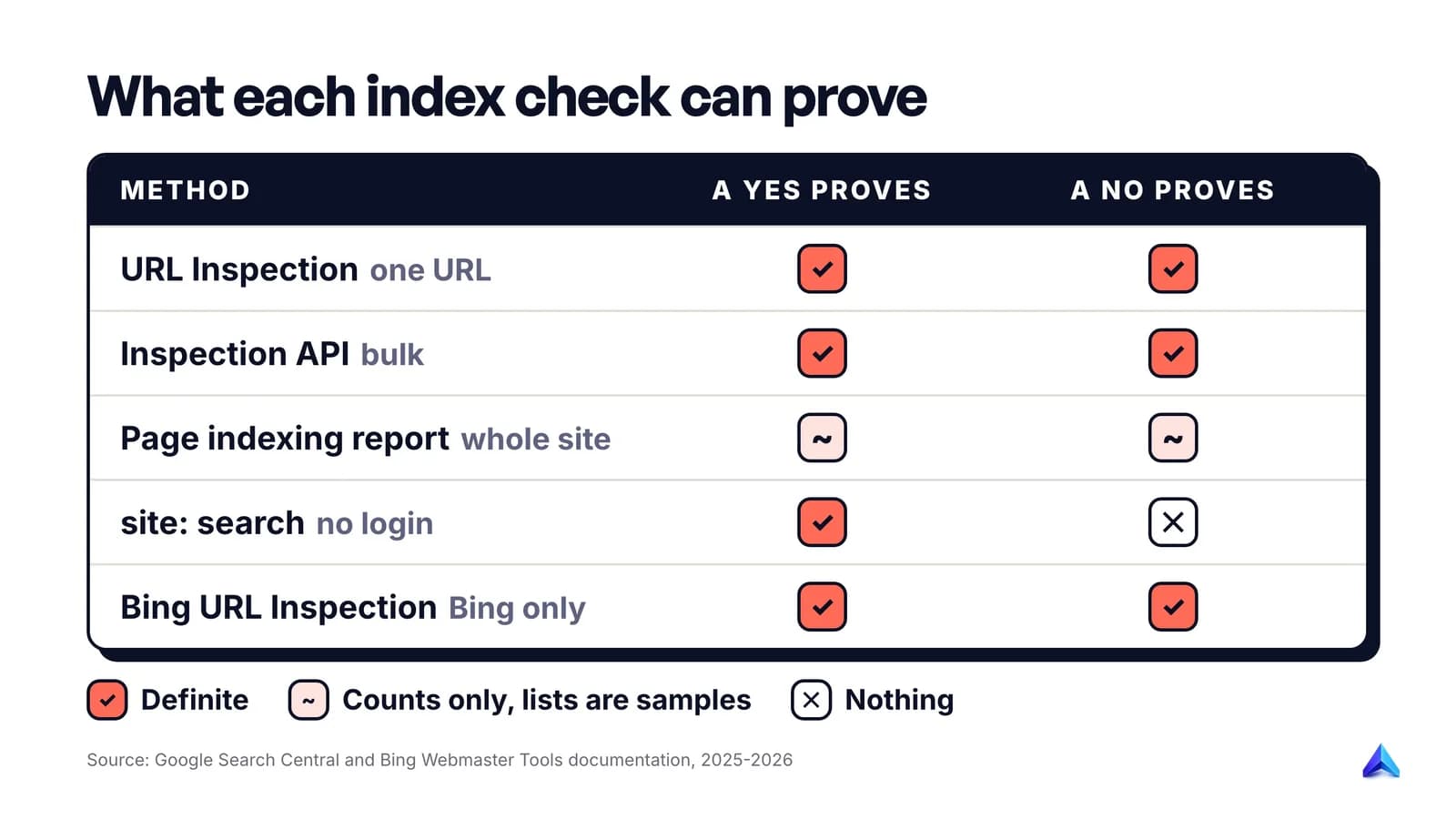
| Method | Needs site ownership | Best for | A "yes" proves | A "no" proves |
|---|---|---|---|---|
| URL Inspection (Search Console) | Yes | One URL | Indexed and eligible to show | Not indexed, with the reason |
| URL Inspection API | Yes | Hundreds of URLs | Same as above, per URL | Same as above, per URL |
| Page indexing report | Yes | The whole site | Counts are accurate, URL lists are samples | Lists are capped, so absence proves little |
site: search | No | Any public page | The page is indexed | Nothing on its own |
| Bing Webmaster Tools | Yes | Bing's index | Indexed in Bing | Not indexed in Bing |
If you have never verified your site in Search Console, do that first, usually with a DNS record or an uploaded HTML file. Every reliable method on this list except site: depends on it. Our older guide to Google Search Console for SEO covers the setup.
Check one URL with URL Inspection
Google's own URL Inspection tool help page describes it as providing "information about Google's indexed version of a specific page". It is the closest thing to a definitive answer you can get, because it reads from the index itself rather than from search results.
- Open Search Console and select the property that contains the page. The URL must be in the property you have open; a page on
blog.example.co.ukwill not inspect inside a property forwww.example.co.uk. - Paste the complete URL, including
https://and the exact path, into the search bar at the top of any Search Console screen. - Read the verdict at the top of the result.
- Expand Page indexing to see the details behind it.
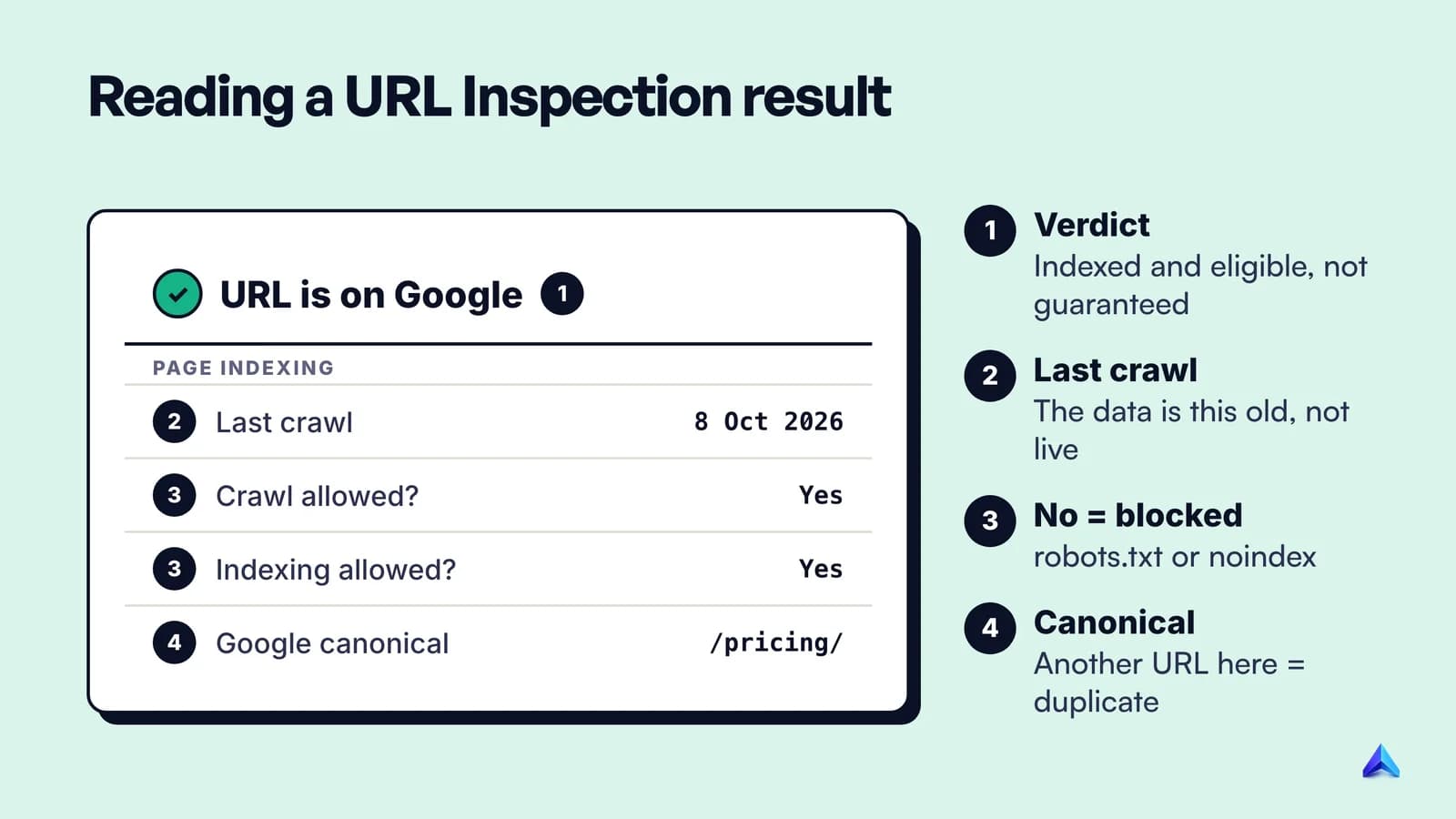
Reading the verdict
There are three outcomes you will see most often.
- URL is on Google. The page is indexed. Google is careful with the wording: it means the URL is "eligible to appear in Search results, but is not guaranteed to be there".
- URL is not on Google. The page cannot appear in Search. The reason is usually in the Crawl section, and the status label matches the one in the Page indexing report, such as "Crawled – currently not indexed" or "Excluded by 'noindex' tag".
- URL is unknown to Google. Google has never seen the URL. It has not been crawled, so there is nothing to diagnose yet. Request indexing and make sure something links to it.
The fields that matter
Inside Page indexing, three sections tell the story in order. Discovery shows how Google found the URL: a sitemap, a referring page, or neither. Crawl shows when Googlebot last fetched it, which crawler it used, and two yes/no lines that settle most cases on their own. If "Crawl allowed?" is No, a robots.txt rule is blocking it. If "Indexing allowed?" is No, the page is sending a noindex tag or header.
Indexing shows the user-declared canonical and the Google-selected canonical. Check these every time. If Google picked a different URL as canonical, your page is being treated as a duplicate, and the version Google indexed is the other one. Our guide to self-referencing canonical tags explains how to make your preference clear.
Indexed data vs the live test
The result you see first is not a live check. Google's help page is blunt about it: the results come from the "most recently indexed version of a page, not the live version on the web". If you fixed something yesterday, the indexed result will still show the old problem until Google recrawls.
Test live URL fetches the page right now. Use it to confirm a fix worked, and not to answer the question "is it indexed?". Google says a valid live test "only confirms if Google-InspectionTool can access your page for indexing". It cannot tell you whether the page will be chosen as canonical, and it does not check manual actions, security issues, legal removals or URLs temporarily blocked with the Removals tool.
One more trap: the live test follows redirects silently and does not show the final URL it tested. If you inspect http://example.in/page and it redirects to the https version, a clean live result is about the destination, not the URL you typed.
Use the site: operator, and know what it cannot prove
When you do not own the site, search Google for the exact URL with the site: operator:
site:https://www.example.co.uk/services/boiler-repair
If the page appears, it is indexed. Google's Page indexing help recommends exactly this search for small sites, and even says that a site with fewer than 500 pages probably does not need the full report at all.
A missing result is a different matter. Google's documentation for the site: operator lists the limits plainly:
- An indexed URL "can show up" for a
site:query, "however it's not guaranteed". - The list of URLs it returns "is not always exhaustive", and bigger sites "shouldn't expect to see all their URLs".
- The operator "was designed primarily for search users", not site owners.
- A bare
site:example.comsearch is not ranked; apart from the shortest URL, which usually comes first, the order is "relatively random".
So treat site: as one-directional. A hit is proof. A miss means "go and check properly", and Google's own advice for that case is to use URL Inspection.
Two habits make the search more useful. Search the URL Google is likely to have indexed, which is your canonical version: if the page lives at https://www.example.in/pricing/, searching the non-www or http variant can come back empty even though the page is indexed. And use site: with a phrase from the page (site:example.in "annual maintenance contract") when you want to see which of your pages Google holds for a topic rather than whether one URL is there.
The cache: operator no longer works
Older guides still tell you to search cache:yourpage.com and look at Google's cached copy. That stopped working in 2024. Google's Search Central documentation updates log recorded on 24 September 2024 that "the cache: search operator no longer works in Google Search." Any tutorial that relies on it is out of date, and so is any "index checker" built on it.
Check the whole site with the Page indexing report
For a site-wide view, open Indexing > Pages in Search Console. The top of the report shows two totals, indexed and not indexed, with a chart over time. Below it, the "Why pages aren't indexed" table groups every unindexed URL by reason.
Read it with three facts from Google's Page indexing report documentation in mind:
- It is not a per-page tool. Google says the report "isn't used to investigate the index status of specific pages", and you cannot search or filter it by URL. Use it to spot patterns, then inspect individual URLs.
- The example lists are samples. Each list of URLs is capped at 1,000 and "isn't guaranteed to show all URLs in a given status, even when less than 1,000 items". A URL missing from a list proves nothing.
- Not indexed is often correct. Redirects, deliberate
noindexpages, filtered category URLs and old 404s should be in the not-indexed column. Google's words: "Non-indexed URLs can be fine."
The most useful control is the sitemap filter above the chart. Switch it from "All known pages" to "All submitted pages" and the report narrows to URLs you listed in a sitemap: the pages you told Google you care about. A not-indexed count there is worth investigating. The same count under "All known pages" is mostly noise from parameters and old URLs.
For a store or a large blog, go one step further. Put your 50 to 100 most important URLs in a separate small sitemap, submit it, and filter the report by that file. You get an index check for your money pages that is not drowned out by thousands of tag and filter URLs.
Check hundreds of URLs with the URL Inspection API
Clicking through URL Inspection is fine for five pages and miserable for five hundred. The Search Console API has an index.inspect method that returns the same indexed-version data for one URL per call. It does not run live tests: Google states that "you cannot test the indexability of a live URL" through the API.
You need a Google Cloud project with the Search Console API turned on and OAuth credentials for an account that has access to the property. A minimal Python script with the official client library:
from googleapiclient.discovery import build

service = build("searchconsole", "v1", credentials=creds)  # OAuth, webmasters.readonly scope

for url in urls:
    res = service.urlInspection().index().inspect(body={
        "inspectionUrl": url,
        "siteUrl": "sc-domain:example.in",  # or "https://www.example.in/" for a URL-prefix property
    }).execute()
    s = res["inspectionResult"]["indexStatusResult"]
    print(url, s.get("verdict"), s.get("coverageState"),
          s.get("lastCrawlTime"), s.get("googleCanonical"))
Two details catch people out. A URL-prefix property must be written with its trailing slash, and a Domain property uses the sc-domain: prefix. Get either wrong and the calls fail even though your account has access to the property.
The fields worth exporting to a spreadsheet:
| Field | What it tells you |
|---|---|
verdict | PASS equals Valid (indexed), FAIL equals Error, NEUTRAL equals Excluded |
coverageState | The human-readable status, e.g. "Submitted and indexed" |
lastCrawlTime | When Googlebot last fetched the URL; absent if never crawled |
robotsTxtState / indexingState | Whether robots.txt or a noindex is blocking it |
googleCanonical | The URL Google chose; absent if the page is not indexed |
Google's Search Console API usage limits allow 2,000 inspection calls per day and 600 per minute for each property. That is enough to audit a mid-sized site in a day. On a larger site, check the URLs in your sitemap first and work through the rest over the following days. If you would rather not write code, several SEO crawlers can call this API for you once you connect Search Console, and the data is the same either way.
Check Bing with Bing Webmaster Tools
Bing runs its own index. Being indexed by Google tells you nothing about Bing, and the reverse is also true, so check both if Bing traffic matters to you.
Bing Webmaster Tools has its own URL Inspection feature. Enter a URL from a verified site and the Index card shows whether it is in the Bing index, along with when and where it was discovered, crawled and indexed. If it is not indexed, the card lists the error and the action to take.
The live test behaves differently from Google's. Bing says its Live URL feature "does not follow redirects": it stops, tells you the page redirected, and shows the destination for you to inspect separately. That is more transparent than Google's silent redirect-following, and it is a quick way to spot a redirect you did not know about. Requests to index a URL in Bing draw on a daily URL submission quota, so spend them on pages you have actually changed.
Indexed, but still not showing up
A page can pass every check above and still never appear when you search for it. Google's Page indexing help says it directly: "Just because a page is indexed doesn't guarantee that it will show up in your search results." Results vary by location, search history and many other signals, and an indexed page still has to rank.
If the whole site is missing rather than one page, work through why a website is not showing on Google in order instead.
If URL Inspection says "URL is on Google" but you cannot find the page:
- Search for the exact URL with
site:before searching by title. If it appears there, it is indexed and the problem is ranking, not indexing. - Check the Manual actions and Security issues reports. URL Inspection does not test either one.
- Check Removals for a temporary block someone on your team may have set.
- Open the Performance report and filter by the page. Any impressions there mean it was shown in results, so it is indexed and the question is which queries it appears for.
Low rankings for an indexed page are a separate problem with separate fixes, from content quality to authority. If the problem looks site-wide, a technical SEO audit is the next step. If you track pages in Project Rankup's Rank Tracker, which reads clicks, impressions and position from Search Console, a page that shows impressions there is indexed, and the question becomes why it sits where it does.
What to do with each result
Once you know a page's status, the label tells you the next step, and it is usually short.
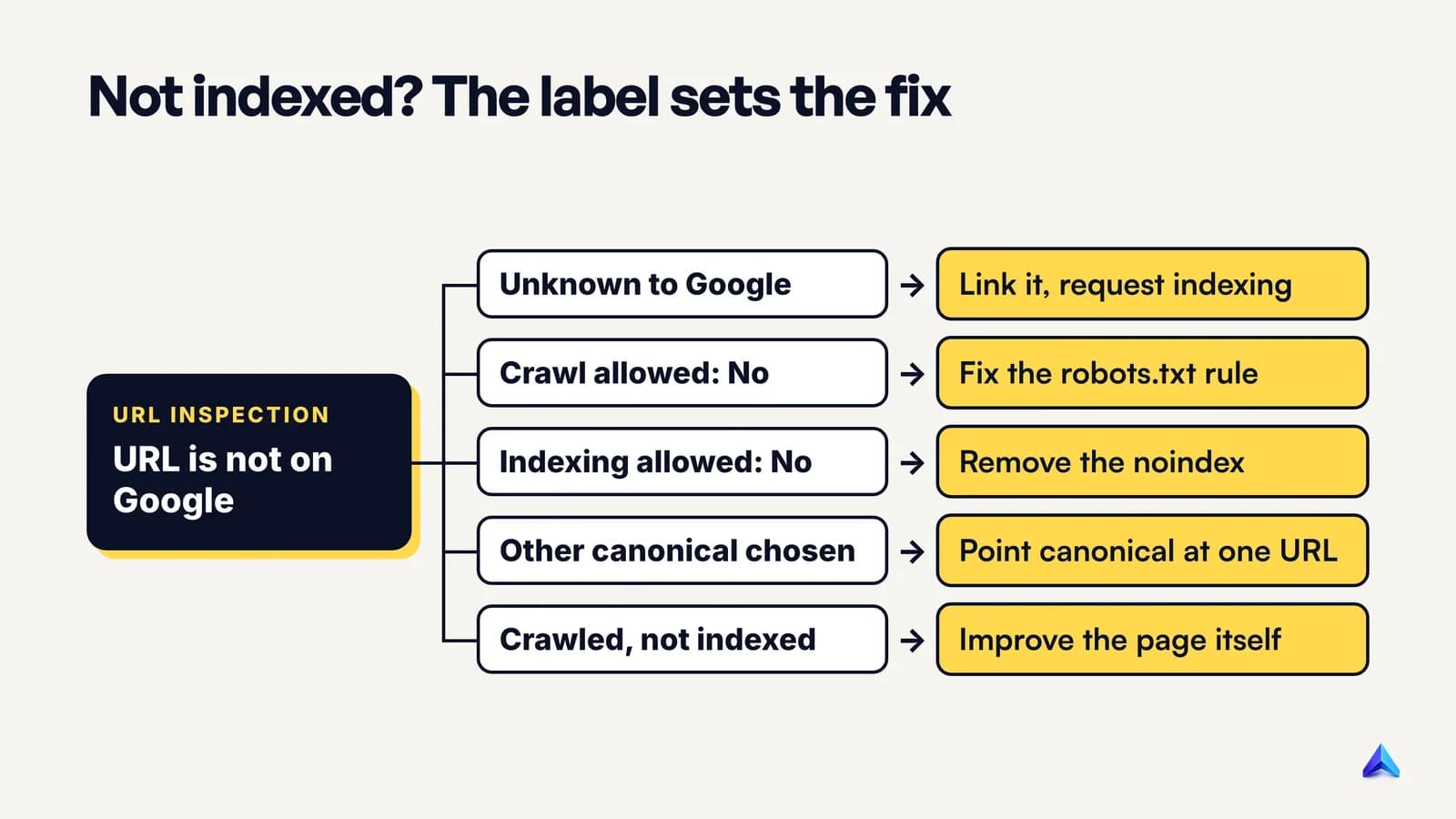
- URL is unknown to Google. Make sure the page is in your XML sitemap and linked from at least one indexed page, then use Request indexing. Google says a new page can take "a week or so" to be crawled and indexed. After a request, indexing "typically takes only a day or so, but can take much longer in some cases."
- Crawl allowed: No. Find the robots.txt rule that matches the URL and remove or narrow it.
- Indexing allowed: No. Remove the
noindexmeta tag orX-Robots-Tagheader. Check your CMS: on WordPress, an SEO plugin setting or "Discourage search engines" is the usual source. - Google chose a different canonical. Decide which URL should be indexed, point the canonical tag at it, and link internally to that version only.
- Crawled – currently not indexed. Google fetched the page and decided not to index it. This is a quality and duplication problem, not a technical block; our guide to fixing Crawled – currently not indexed works through it in order.
- Redirect error. Googlebot gave up on a redirect chain or loop. The redirect error guide shows how to trace and fix it.
Request indexing once per real change. Google applies a daily limit to requests and says that submitting one "does not guarantee that the page will appear in the Google Index." For many new or updated pages at once, a sitemap with accurate <lastmod> dates is the route Google recommends.
Mistakes that give you the wrong answer
Most wrong conclusions about indexing come from checking the wrong thing, not from Google being slow.
- Checking a different URL variant.
httpvshttps,wwwvs non-www, a trailing slash or a tracking parameter can each be a separate URL to Google. Inspect the canonical URL, the one your internal links and sitemap use. - Reading the indexed result straight after a fix. It still shows the last crawl. Confirm the fix with the live test, then wait for a recrawl.
- Trusting a free "Google index checker" that never asks for Search Console access. Without your property it cannot see URL Inspection data, so the best it can do is a
site:search, false negatives included. - Treating every not-indexed URL as a problem. Filter the Page indexing report to submitted pages before you panic.
If you change URLs while fixing any of this, our notes on URL slug best practices cover when a new slug is worth the redirect.
Frequently asked questions
How can I check if a page is indexed by Google without Search Console?
Search Google for site: followed by the full URL, for example site:https://www.example.com/page. If the page appears, it is indexed. If it does not, the page may still be indexed, because Google says site: results are not exhaustive. Only the site owner can get a definite answer, through URL Inspection.
How do I check how many pages of my website are indexed?
Open Indexing > Pages in Search Console. The indexed total above the chart is Google's own count for your property, and Google describes the totals as complete and accurate. Do not use the number of results from a site: search: Google says that list is not exhaustive.
How long does it take for Google to index a new page?
Google says it can take a week or so to start crawling and indexing a new page or site. After you use Request indexing in URL Inspection, indexing typically takes a day or so, though it can take up to a week or two and sometimes longer. A request does not guarantee indexing.
Why would a page not be indexed by Google?
The common reasons are a robots.txt block, a noindex tag, Google choosing another URL as canonical, a redirect or server error, or Google crawling the page and deciding it was not worth indexing. URL Inspection shows which one applies to your page in the Crawl and Indexing sections.
Can I check if a competitor's page is indexed?
Only with a site: search, because URL Inspection works only for properties you own. Search the exact URL. If it appears, the page is indexed. If it does not, try the www and non-www versions before concluding anything, and remember that a missing result is not proof.
Does Google indexing my page mean Bing has indexed it too?
No. Bing maintains its own index and crawls with its own crawler, Bingbot. Check Bing separately with the URL Inspection tool in Bing Webmaster Tools, which shows whether a URL is in the Bing index and when it was discovered, crawled and indexed.