To optimize images for SEO, do two jobs. First, help Google find and understand each image: put it in a real <img> tag with a src, give it a descriptive filename and alt text, and place it next to text about the same thing. Second, make it light: resize it to the size it is shown at, save it as WebP or AVIF, serve smaller versions to phones, and lazy-load everything except the main image.
Below are the eight steps in the order you would do them, plus one photo we optimised ourselves so you can see what each step is worth in kilobytes.
Two jobs: be found, then load fast
Images can bring search traffic on their own. Google shows them in Google Images, as thumbnails beside ordinary text results, in Discover, and as matches in Google Lens. Google's image SEO best practices say the general recommendations are the same for Images, text-result thumbnails and Discover, and its shopping documentation sends Lens back to the same page. The advice splits neatly into two halves.
The first half is discovery and meaning: a crawler has to find the file, connect it to a page and work out what it shows.
The second half is weight. Google's own documentation says images "are often the largest contributor to overall page size, which can make pages slow and expensive to load." A slow image does not stop indexing, but it drags down the page it sits on, and Google's page experience documentation states that Core Web Vitals "are used by our ranking systems".
Keep the halves apart in your head. A beautifully compressed image in a CSS background is still invisible to Google, and a perfectly described 4 MB photo still makes a phone user wait.
Step 1: Use a real img element with a src
Google is specific about how it finds images: it reads the src attribute of an <img> element, including an <img> inside a <picture> element. It also says plainly that it does not index CSS images.
<!-- Google can index this -->
<img src="/images/brass-table-lamp-green-shade.jpg" alt="Brass table lamp with a green glass shade">

<!-- Google will not index this image -->
<div style="background-image:url(/images/brass-table-lamp-green-shade.jpg)"></div>
Page builders often use that second pattern for hero banners. If an image matters for search, it needs to be a real <img>.
Two related rules from the same page:
- Keep a plain
srcas a fallback. Google notes that some browsers and crawlers do not understandsrcsetor<picture>, so it recommends always specifying a fallback URL insrc. - Use a supported format with a matching extension. Google Search supports BMP, GIF, JPEG, PNG, WebP, SVG and AVIF, and suggests the file extension should match the real file type. A WebP file saved as
.jpgis asking for trouble.
If your site renders images with JavaScript, check that the final HTML still contains the <img> tags. Our React SEO playbook covers how to see what a crawler sees on a client-rendered page.
Step 2: Name the file and write useful alt text
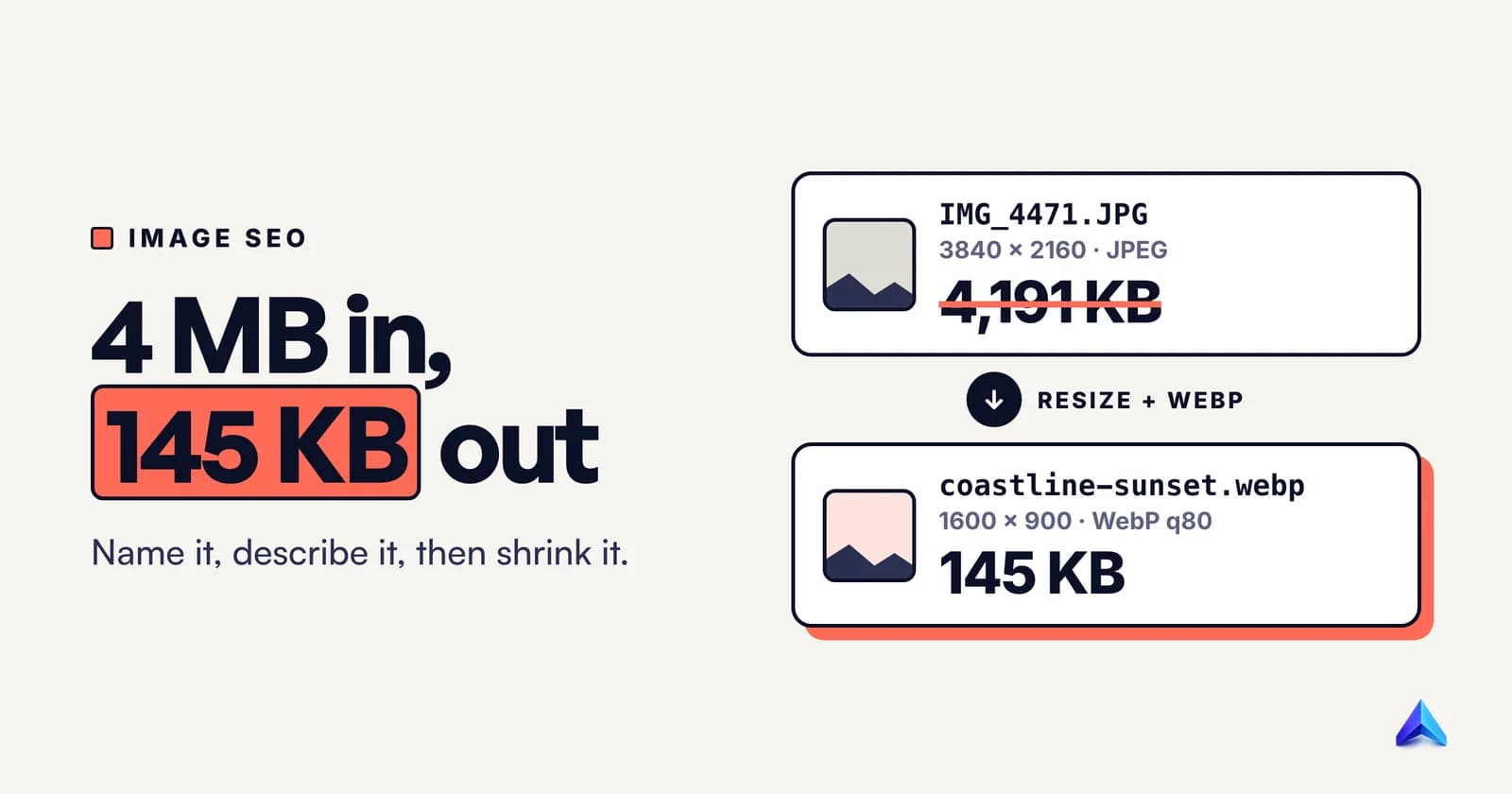
Rename the file before you upload it. Google calls filenames "very light clues" about what an image shows, so this is a small win, but it is a free one. brass-table-lamp-green-shade.jpg beats IMG_4471.JPG, and Google's own example prefers my-new-black-kitten.jpg to IMG00023.JPG. Use short, hyphenated words, the same habits behind good URL slugs. If you publish a product page in Hindi or French, Google says to translate the filename too.
Alt text matters far more. Google describes it as "the most important attribute" for image metadata, and says it uses alt text together with computer vision and the content of the page to work out what the image shows. It is also what a screen reader reads aloud.
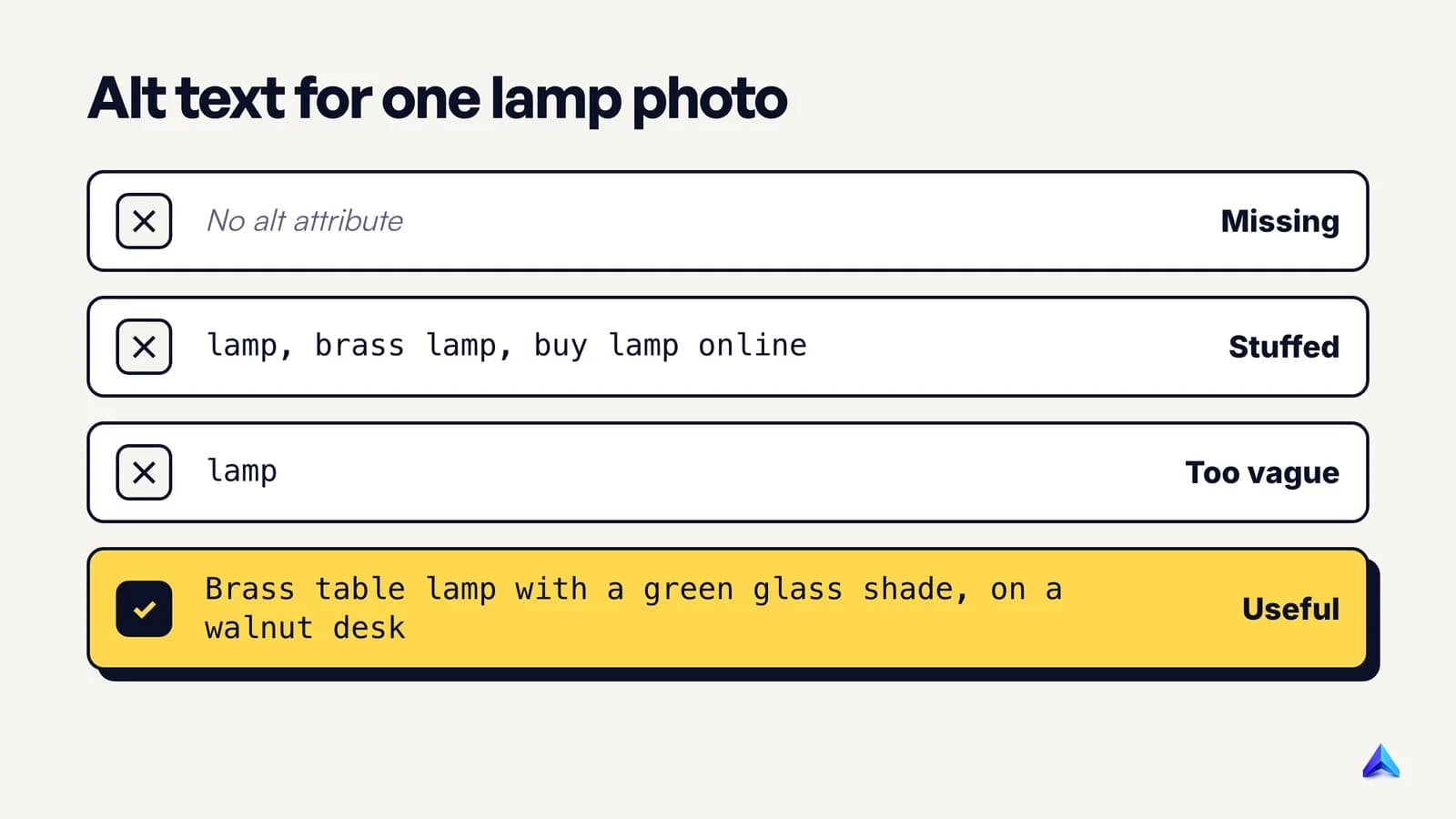
Describe the image as you would to someone on the phone: what it is, the detail that sets it apart, and the context if it matters.
| Alt text | Verdict |
|---|---|
| (missing) | Google and screen readers get nothing |
lamp, table lamp, brass lamp, buy lamp online, best lamp | Keyword stuffing; Google warns it "may cause your site to be seen as spam" |
lamp | Accurate but tells nobody anything |
Brass table lamp with a green glass shade, lit, on a walnut desk | Specific, natural, and contains the words a shopper would use |
For charts and screenshots, put the takeaway in the alt text ("WebP file 37% smaller than JPEG at similar quality"), not "bar chart".
Step 3: Resize to the largest size it is shown at
This step saves the most bytes. A 4,000-pixel camera photo shown in a 700-pixel column is downloaded in full and then shrunk by the browser. The visitor pays for pixels they never see.
The rule: find the widest size the image is ever displayed at, double it for high-density screens, and export at that width. For a blog column around 700 to 800 pixels wide, a master file 1,600 pixels wide covers retina screens. For a full-width hero, we would cap the master at about 2,400 pixels. Thumbnails need far less.
Google's guidance names no ideal pixel count. It asks for sharp, high-quality images, noting that sharp thumbnails "can increase the likelihood of getting traffic from users." Aim for sharp at the displayed size, not huge.
Step 4: Pick WebP or AVIF, then compress
For photos, the modern formats win. MDN's image format guide calls WebP an excellent choice that "offers much better compression than PNG or JPEG", and says AVIF offers slightly better compression again but is not quite as well supported. Google Search indexes both.
Our recommendation: WebP as the default for photos, with AVIF added through <picture> or an image CDN if you want the last few kilobytes. Use SVG for logos and icons. Keep screenshots and images with text lossless or high quality, because MDN notes that blurring around text and sharp edges is very visible, while photographs "can usually tolerate lossy compression".
One trap: quality numbers are not comparable across formats. In our test below, AVIF at quality 75 produced a file almost exactly as large as WebP at quality 85. Compare files at the same visual quality, not at the same slider position.
Camera metadata is not where the savings are. In the photo we test below, the whole EXIF block was 224 bytes out of more than 4 MB.
Worked example: one 4.19 MB photo, measured
To put numbers on steps 3 and 4, we took one real photograph and ran it through them with Pillow, the Python imaging library (version 12.3.0), on 9 October 2026. The sample is a detailed 3840 × 2160 sunset shot of a coastline and bridge, saved as a 4,191,041-byte JPEG. A product photo on a plain background will compress differently, so treat the numbers as one honest data point, not a law.
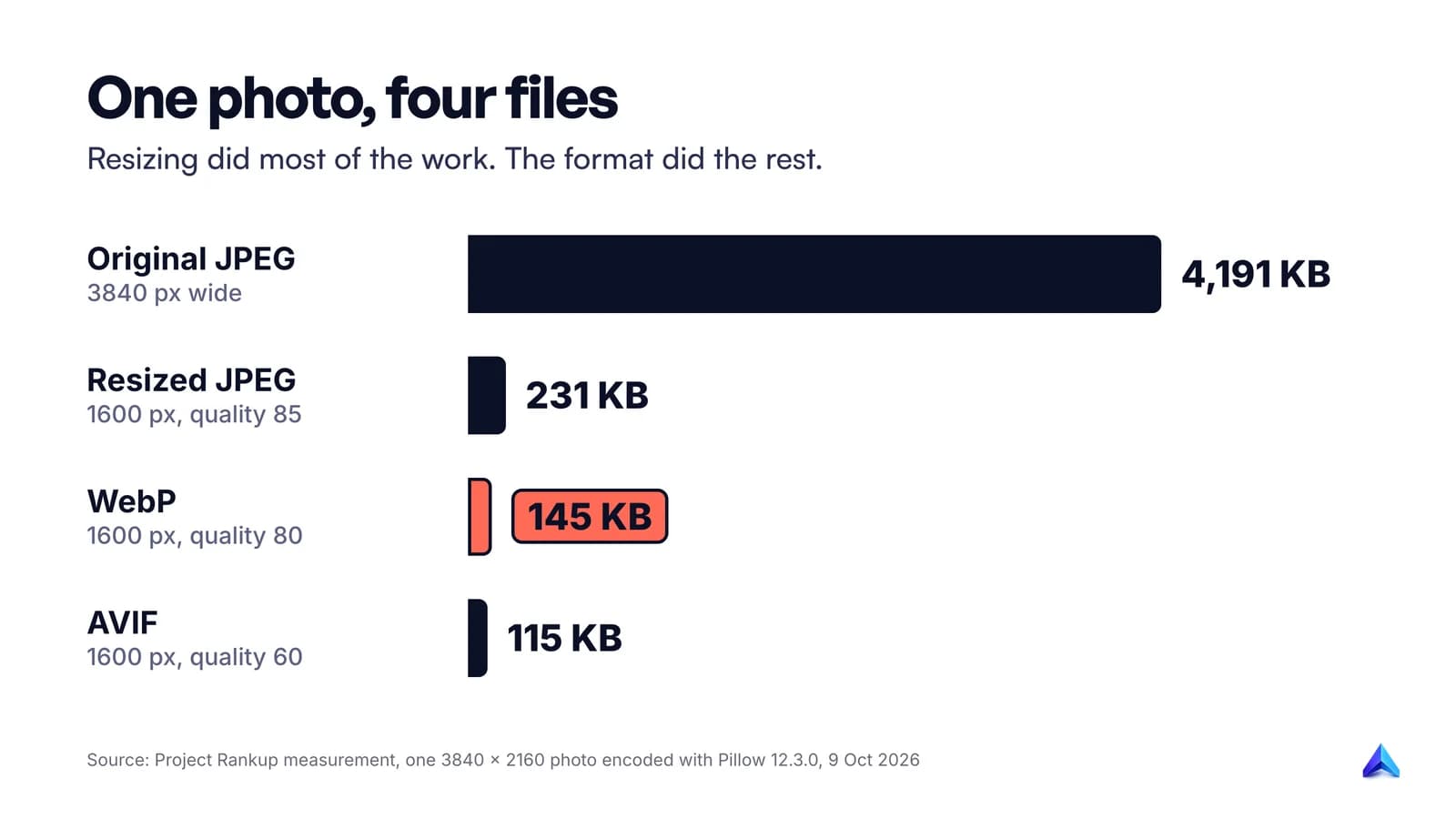
| Version (1600 × 900 unless stated) | File size | Smaller than original | Quality vs resized master (PSNR) |
|---|---|---|---|
| Original, 3840 × 2160 JPEG | 4,191 KB | ||
| Same size, re-saved as JPEG quality 85 | 830 KB | 80% | |
| Resized, JPEG quality 85 | 231 KB | 94.5% | 36.6 dB |
| Resized, WebP quality 80 | 145 KB | 96.5% | 36.3 dB |
| Resized, AVIF quality 60 | 115 KB | 97.3% | 36.1 dB |
| Resized to 800 × 450, WebP quality 80 | 48 KB | 98.9% |
What the table says:
- Resizing did most of the work. Going from 3840 to 1600 pixels wide, still as a JPEG, removed 94.5% of the bytes.
- The format change was the second biggest win. At almost the same measured quality, WebP came out 37% smaller than the resized JPEG, and AVIF 50% smaller.
- Phones need much less. An 800-pixel WebP for small screens weighed 48 KB, a third of the 1600-pixel version. That is the case for responsive images in the next step.
We also compared the three 1600-pixel versions at 100% zoom on a crop of rocks and surf, the hardest part of the image, and could not see a difference. PSNR is a rough score, so check your own images by eye. For a UK or Indian shop with hundreds of product photos, the recipe is the same: one sharp master at twice the column width, WebP around quality 80, and smaller sizes generated by the CMS or CDN.
Step 5: Serve responsive sizes with srcset and sizes
One 1600-pixel file is right for a laptop and wasteful on a phone. srcset lists the sizes you have, and sizes tells the browser how wide the image will be displayed, so it can pick before it has laid out the page.
<img
  src="/images/brass-table-lamp-1600.webp"
  srcset="/images/brass-table-lamp-400.webp 400w,
          /images/brass-table-lamp-800.webp 800w,
          /images/brass-table-lamp-1600.webp 1600w"
  sizes="(min-width: 1024px) 700px, 100vw"
  width="1600" height="900"
  alt="Brass table lamp with a green glass shade, lit, on a walnut desk">
MDN's responsive images guide explains the selection: the browser takes the first media condition in sizes that is true, reads the slot width, and loads the matching file. If there is no exact match, it picks the first image bigger than the slot and scales it down. Slot widths can be pixels or viewport units such as 50vw, but not percentages.
The most common mistake is leaving sizes out or setting it to 100vw for an image that sits in a narrow column. The browser then assumes the image fills the screen and downloads a file far larger than it needs. Most CMSs and image CDNs generate the smaller files; your job is to check that sizes matches your real layout.
Step 6: Set width and height on every image
Without dimensions, the browser does not know how much space to reserve until the file arrives, so text jumps down the page when it does. That jump is a layout shift, which Google measures as Cumulative Layout Shift, one of the Core Web Vitals. Chrome's web.dev guide to image lazy loading recommends "adding width and height attributes to all <img> tags" for this reason.
CSS can still make the image responsive with max-width: 100%; height: auto;. The same guide flags a second problem: without dimensions, images default to 0 × 0 pixels, so a gallery of lazy images can look as if it all fits in the viewport and load at the wrong time.
Step 7: Lazy-load below the fold, never the main image
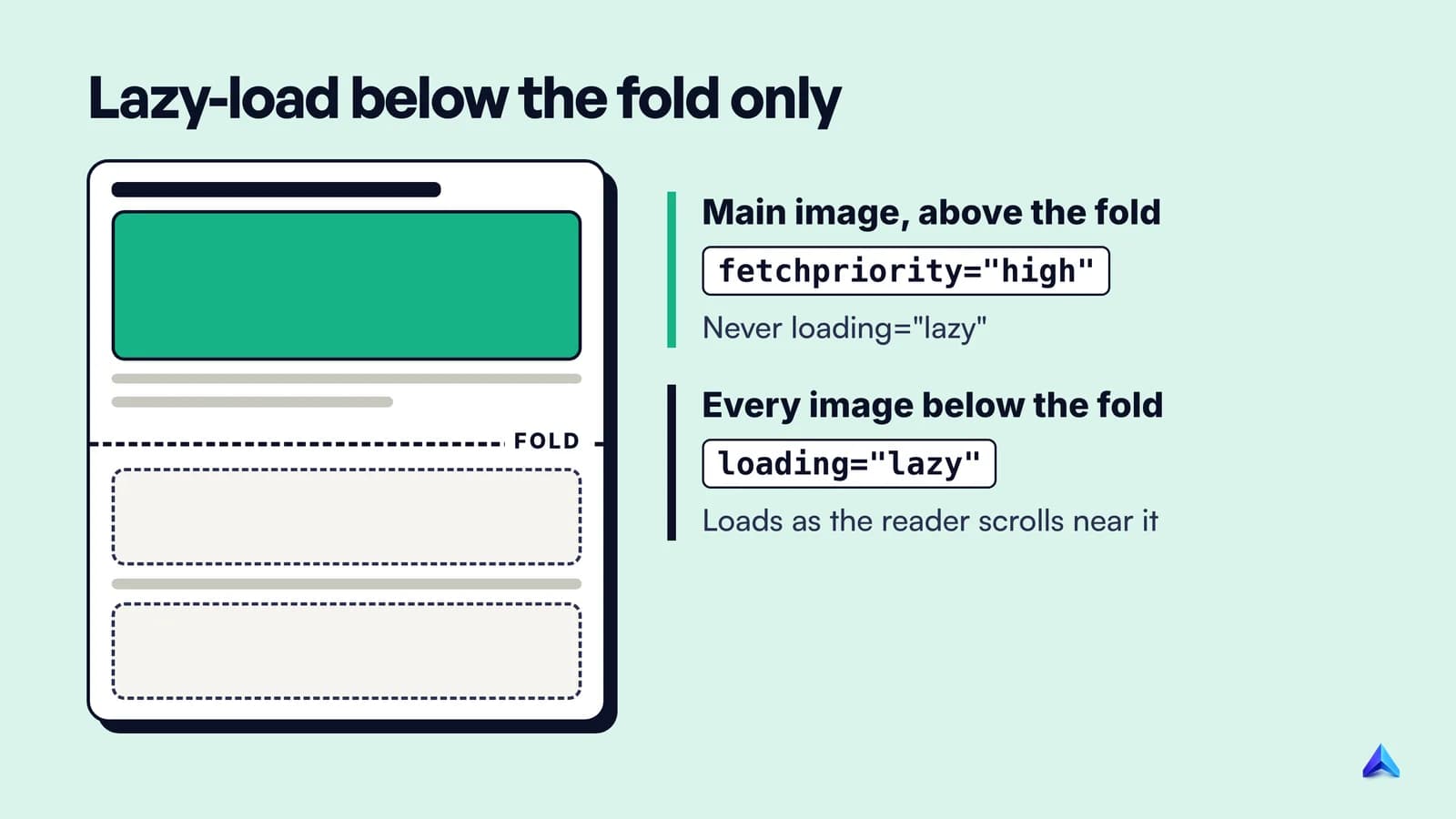
loading="lazy" tells the browser to wait until an image is near the viewport before downloading it. That is excellent for the twentieth image in a product grid. It is harmful for the first image people see.
web.dev's guide to optimising Largest Contentful Paint explains why: a lazy image "won't be loaded until after layout confirms the image is in the viewport", so the main image starts downloading later than it should. On an article or product page with a large photo at the top, that photo is usually the Largest Contentful Paint element, the moment the page looks loaded.
The data backs this up. In a web.dev analysis of lazy loading, the median page without lazy loading had a 75th-percentile LCP of 2,922 milliseconds, against 3,546 milliseconds for the median page with it. The authors stress that this is correlation, not proof. Their follow-up WordPress test was clearer: lazy-loading only the images below the fold produced "a complete reversal of the LCP regression".
So the rule is:
- The main image above the fold: no
loading="lazy". Addfetchpriority="high". - Everything below the fold:
loading="lazy". - Carousels: only the first visible slide gets high priority.
Why fetchpriority="high"? Chrome starts images in the viewport at low priority and only boosts them once layout shows they are visible. The Fetch Priority guide shows the Google Flights homepage improving LCP from 2.6 seconds to 1.9 seconds with that one attribute. Use it on one or two images at most; web.dev says setting it on more makes it unhelpful. The hero also has to be in the HTML; web.dev says the LCP resource "should be discoverable from the HTML source".
Step 8: Give the page context: text, structured data and og:image
Google says the page around an image "can have a great influence on how and where the image may appear" in results. It extracts meaning from captions, image titles and nearby text, and asks you to place images near relevant text, on pages about the same subject. A product photo beside the product name, price and specifications is doing its job.
You can also suggest which image represents the page:
- Structured data:
primaryImageOfPageon the WebPage, or animageproperty on the main entity such as a Product, Article or Recipe. og:image: the Open Graph tag that social networks read, which Google also accepts as a hint.
Google's advice for that preferred image is to make it relevant to the page, high resolution, and not a generic logo or an image full of text, and to avoid extreme aspect ratios. If you are setting og:image anyway, our Twitter Card guide covers the sizes and tags social previews need.
Structured data does more than suggest. Google states that the image attribute is required for a page to be eligible for a badge and rich result in Google Images. Leave it out of your Product or Recipe markup and you rule that result out. And if an image appears on many pages, reference it with the same URL so Google can cache and reuse it.
Image sitemaps, briefly
An image sitemap lists image URLs Google might not find on its own, such as images loaded by a script or a lightbox. Google allows image URLs on other domains inside <image:loc>, which is what makes it work for images served from a CDN, and recommends verifying the CDN domain in Search Console so you hear about crawl errors.
For a small site with images in plain <img> tags, it is optional. It earns its keep on large catalogues, JavaScript galleries and images on a separate domain, and it complements step 1 rather than replacing it.
Google Lens and product photos
Visual search uses the same foundations. Google's ecommerce documentation gives three requirements for products to appear in Google Lens results: upload product details to Google Merchant Center, opt in to product listings, and follow the image best practices above.
Google also says high-quality photos appeal to users more than blurry ones. For a product, our advice is to keep a clean, well-lit view of the item itself in an <img> tag on the product page, alongside any styled lifestyle shots where the kurta or lamp is only part of the frame.
Search Console now reports these searches separately. Our guide to the Google Lens report in Search Console shows where the Web: multimodal filter sits and which pages photo searches reach.
What our own blog does, and does not do
We inspected the HTML of a live post on this blog on 9 October 2026. The site runs on Next.js and serves blog images through its built-in image optimiser. What it gets right:
- In-article figures are lazy, responsive and WebP. Each figure has
loading="lazy", asrcsetfrom 384 to 3,840 pixels wide, andsizesset to 700 pixels on screens 1,280 pixels and wider. The response isimage/webp. - The savings are real. One 1600-pixel figure we uploaded as a 51.8 KB WebP arrives as 17.6 KB at 828 pixels wide and 6.8 KB at 384.
- The cover is not lazy. It loads eagerly, and the page head preloads it with a responsive
imageSrcSet.
What we would still change:
- No AVIF. Our request said it accepted AVIF, and the optimiser still returned WebP. That is the Next.js default: its docs list WebP as the only default format and say AVIF compresses about 20% smaller but takes about 50% longer to encode. The same docs still recommend WebP for most cases, so this one is a judgement call.
- No
fetchpriority="high"on the cover. The preload covers early discovery, but the attribute would be a one-line improvement. - The cover's alt text is the post title. That duplicates the H1 instead of describing the image, which breaks our own step 2.
How to check your images
- Run PageSpeed Insights on a key page. Look for the LCP element, oversized images, missing dimensions and modern-format suggestions.
- Open Chrome DevTools, Network tab, filter by Img. Sort by size. Look hard at anything over a few hundred kilobytes, and at JPEG or PNG where WebP would do.
- Inspect the hero. In the Elements panel, confirm it is an
<img>with asrc, haswidthandheight, and does not haveloading="lazy". - Check alt text in bulk. In the DevTools console,
document.querySelectorAll('img:not([alt])')lists every image with no alt attribute at all. - Log lazy LCP images from real visits. web.dev publishes a short
PerformanceObserversnippet that warns in the console when the LCP element was lazy loaded. - Watch Search Console. The Image search type in the Performance report shows Google Images traffic, and Web: multimodal shows photo-led searches.
Add these checks to your regular technical SEO audit so new uploads get caught, not just the backlog.
Frequently asked questions
Do images improve SEO?
Yes, in two ways. Images can rank on their own in Google Images, as thumbnails beside text results, in Discover and in Google Lens. They also help the page they sit on when they are relevant and fast. A heavy, unlabelled image does the opposite: it slows the page and gives Google nothing to understand.
What is the best image size for SEO?
There is no ideal pixel count for ranking. Export each image at about twice the width it is displayed at, so it stays sharp on high-density screens, and serve smaller versions to phones with srcset. For a typical 700 to 800 pixel blog column, a 1,600-pixel master works. Keep photos well under 200 KB where you can.
What is the best image format for SEO?
Google indexes BMP, GIF, JPEG, PNG, WebP, SVG and AVIF, so format does not affect whether an image ranks. It affects speed. WebP is the safest default for photos, AVIF is usually smaller still, and SVG is best for logos and icons. Keep a JPEG or PNG fallback only if your audience needs it.
Does the image file name matter for SEO?
A little. Google calls filenames very light clues about what an image shows, so a short descriptive name such as red-silk-saree.jpg is better than IMG_0023.jpg. It will not rescue an image with no alt text or no relevant text nearby, so treat it as a quick win rather than a priority.
Should every image have alt text?
Every image needs an alt attribute, but not every alt attribute needs words. Content images, such as products, charts and screenshots, need a specific description. Purely decorative images, such as dividers and background flourishes, should use an empty alt, alt="", so screen readers skip them. An empty alt is a deliberate signal; a missing one is a gap.
Does compressing images improve rankings?
Indirectly. Small files earn no points on their own, but compression makes pages load faster, especially the main image that often decides Largest Contentful Paint, and Google says Core Web Vitals are used by its ranking systems. Treat it as a speed fix that helps visitors first.