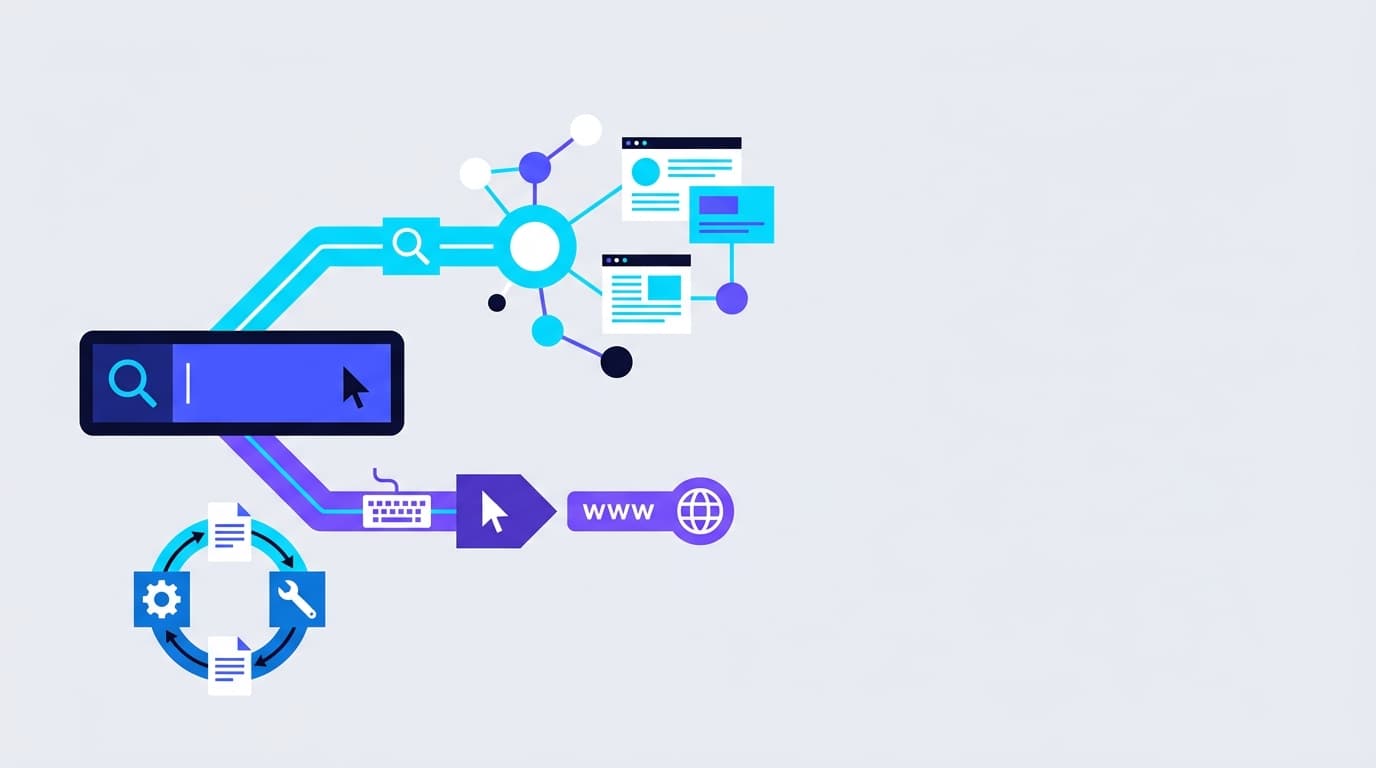
When you open Chrome and see "Search Google or type a URL" in the address bar, your browser is telling you one bar handles two jobs: type a web address like youtube.com to go directly to that site, or type words and questions to search Google. That is the entire mystery solved. The rest of this guide covers how the browser decides which job to do, what to do when things break, and why any of this matters for your site's SEO.
Quick Answer: "Search Google or type a URL" means your browser's address bar handles both web searches and direct site navigation in a single field. Type a web address to go straight to a site. Type words or a question to search. One bar, two jobs.
What Does "Search Google or Type a URL" Mean?
The phrase is a plain-language label Chrome prints inside its address bar to remind you of its two functions. Type amazon.com and you land on Amazon. Type best email app for small business and Google returns search results. The same bar handles both, so you never have to choose a box before you start typing.
- Type a web address (like
youtube.com) and go directly to that site. - Type words or a question and your default search engine finds results for you.
- One bar handles both. You do not have to decide which mode you are in before you start typing.
Chrome calls this combined field the omnibox. Firefox labels it the Awesome Bar. Microsoft Edge and Safari describe it as a Smart Address Bar and Smart Search Field respectively. Different names, identical concept.
What Is a URL, and How Is It Different from a Search Term?
A URL (Uniform Resource Locator) is a precise web address that points to one specific resource on the internet. MDN Web Docs defines a URL as the address of a unique resource, the same way a postal address identifies one building.
A full URL looks like this:
https://www.example.com/blog/what-is-seo?ref=homepage#faq
| Part | Example | What It Does |
|---|---|---|
| Protocol | https:// | Tells the browser how to connect securely |
| Domain | www.example.com | The website's name |
| Path | /blog/what-is-seo | The specific page on that site |
| Parameters | ?ref=homepage | Extra information passed to the page |
| Fragment | #faq | Jumps to a specific section on the page |
A search term, by contrast, is just words. best email app for small business is a search term. mail.google.com is a URL. The difference sounds obvious until you type something like amazon and the browser has to guess which one you meant. Spoiler: it usually guesses search.
Understanding URL structure is foundational to technical SEO. Clean, descriptive URLs are one of the signals search engines use to understand what a page is about, so the concept that matters to everyday browsing also matters to how your site ranks.
Why Your Browser Shows This Prompt
Browsers once had two separate input fields at the top: one for web addresses, one for search queries. That design forced you to decide, before you started typing, whether you were searching or navigating. Chromium's design documentation identifies this as a real usability problem: the decision itself was a cognitive tax most users did not want to pay. By 2024, over 65% of web users relied on unified address bars across all major browsers (Statista, 2024).
The omnibox eliminated that decision entirely. A single smart field interprets what you type and routes your input to the right destination. Every major browser adopted this model within a few years, and none have gone back.
Apple's Safari documentation describes their Smart Search field as capable of both searching the web and visiting a website by entering its name or address. Firefox and Edge follow the same dual-purpose logic. The wording differs, but the behavior is identical across all four major browsers.
How Your Browser Decides to Search vs. Navigate
This is the part most articles skip. Browsers do not read your mind. They use heuristics, which are pattern-matching rules, to guess what you meant based on what you typed. Chromium's omnibox documentation lays out the core logic:
- Single words are ambiguous. The browser often defaults to search.
- Input with dots, slashes, or recognizable domain patterns gets treated as a URL.
- Multiple words are almost always treated as a search query.
Here is how that plays out in practice:
| What You Type | What Happens | Why |
|---|---|---|
amazon | Searches Google for "amazon" | Single word, ambiguous |
amazon.com | Opens Amazon's website | Pattern matches a URL |
how to bake sourdough bread | Searches Google | Multiple words, clear query |
support.mozilla.org | Opens Mozilla's support site | Dots make it look like a URL |
localhost:3000 | Opens local server | Port number signals a URL |
The practical fix is simple. If you want to go to a site, include the .com (or .org, .co.in, and so on). facebook is a word. facebook.com is an address. The browser's confidence jumps immediately.
One shortcut worth memorizing: on Windows and Linux, typing a site name and pressing Ctrl + Enter automatically wraps it in www. and .com in Chrome, as Google's keyboard shortcuts page confirms. On Mac it is Cmd + Return. Type facebook and hit Ctrl + Enter and you land on www.facebook.com without ever touching the mouse.
What's New in 2026: Browser Address Bars Are Smarter (and More Contested)
The address bar in 2026 is no longer just a routing tool. A few developments are worth knowing, especially if you manage a website or care about privacy.
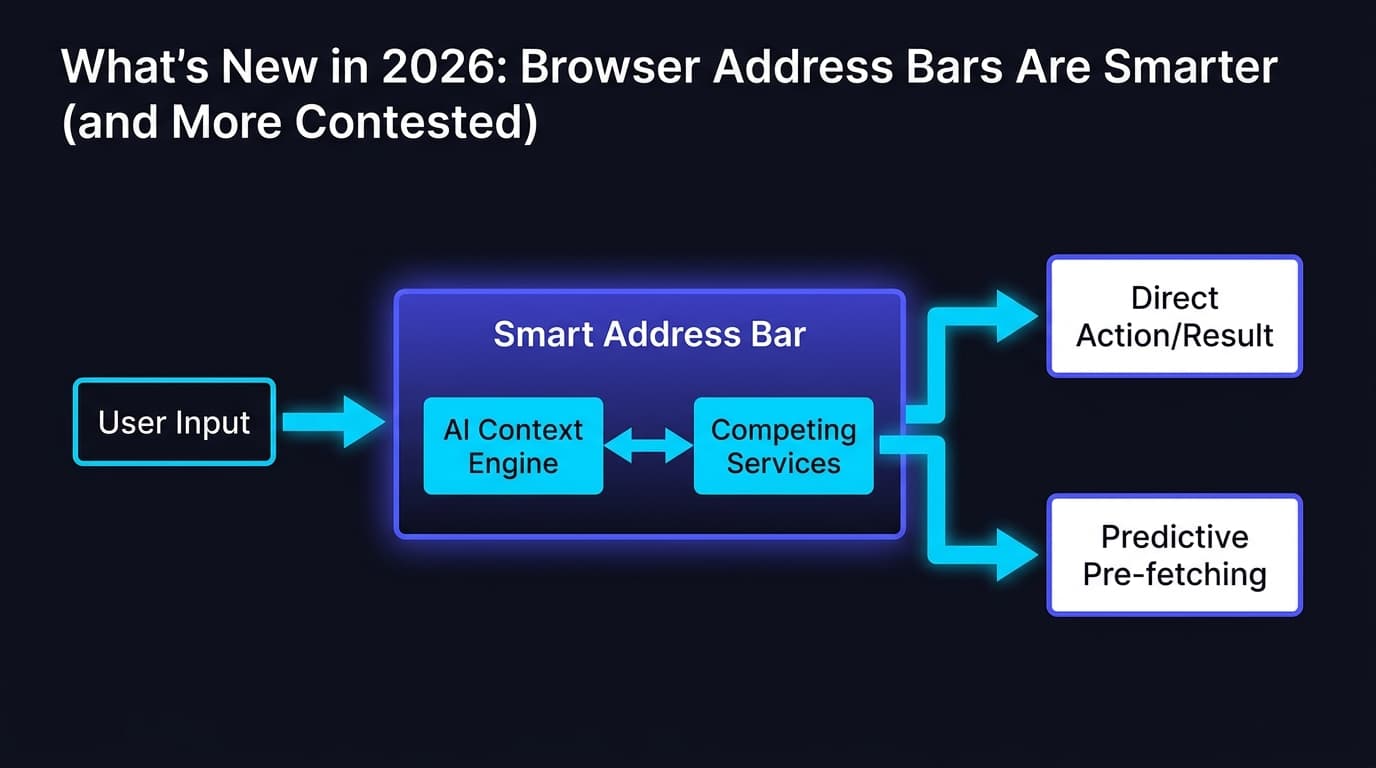
Chrome now integrates Gemini AI suggestions directly in the address bar. Google has been rolling out AI-powered completions that go beyond your browsing history, surfacing suggested actions and answers before you even finish typing a query. The line between "search google or type a url" and "ask an AI" is blurring in Chrome specifically.
Alternative browsers are gaining share. Arc, Brave, and Vivaldi each handle the address bar differently. Brave defaults to its own search engine (Brave Search) rather than Google, which changes the data flow entirely. Brave reports 126.3 million monthly active users as of August 31, 2026 (Brave Transparency Data Feed). If you are studying traffic patterns for a client site, do not assume Chrome's omnibox behavior is universal.
Privacy regulations now affect address bar data collection. In the EU, the Digital Markets Act has accelerated browser choice screens, meaning users are more likely to switch default search engines away from Google. In India, the Competition Commission has pursued similar investigations into bundled browser defaults. This matters for site owners because a shift in default search engine affects how "search google or type a url" traffic gets attributed in your analytics.
For a deeper look at how AI is reshaping search behavior, see how AI search strategies are evolving for businesses in 2026.
How Each Browser Handles "Search Google or Type a URL" in 2026
The phrase itself is Chrome's wording, but every major browser has an equivalent. Here is the full comparison:
| Browser | Address Bar Label | Default Search Engine | How to Change Search Engine | Private Mode Behavior |
|---|---|---|---|---|
| Chrome | "Search Google or type a URL" | Settings > Search engine | Incognito: same engines, no history saved | |
| Firefox | "Search with [engine] or enter address" | Google (varies by region) | Settings > Search | Private Window: same engines, no history |
| Microsoft Edge | "Search or enter web address" | Bing | Settings > Privacy, search, and services > Address bar and search | InPrivate: same engines, no history |
| Safari | "Search or enter website name" | Settings > Search > Search Engine | Private: same engines, no history | |
| Brave | "Search or enter a web address" | Brave Search | Settings > Search engine | Private with Tor: routes through Tor network |
The key practical difference is the default search engine, not the label. Chrome and Safari both default to Google, which is why most users have never had to think about changing it. Edge defaults to Bing, which surprises a lot of new Windows users. Brave defaults to Brave Search, a genuinely independent index.
What Happens When You Start Typing
The address bar feels instant because the browser starts working before you press Enter. Chrome's documentation explains that suggestions appear based on your browsing history and data from your default search engine. Chrome can even preconnect to your search engine in the background to make results load faster, and when it is confident enough, it prerenders the entire destination page before you finish typing.
Firefox, Edge, and Safari all offer live suggestions from a mix of your history, bookmarks, open tabs, and the search engine itself.
Firefox explicitly documents that its suggestions adjust based on how frequently and how recently you visited a page, and which result you clicked before. The more you use it, the sharper the predictions become.
The privacy trade-off is real. Chrome's settings page states that when "Improve search suggestions" is enabled, what you type in the address bar is sent to your default search engine as you type, along with your IP address and relevant cookies. Firefox confirms the same for its suggestion feature. Safari notes that search engine suggestions may record your search terms. If you want to stop that data flow, every browser lets you disable suggestions in settings, and the browser still works fine. You just lose the live completions.
When to Type a URL vs. When to Search
The decision rule is simple enough to memorize in ten seconds.
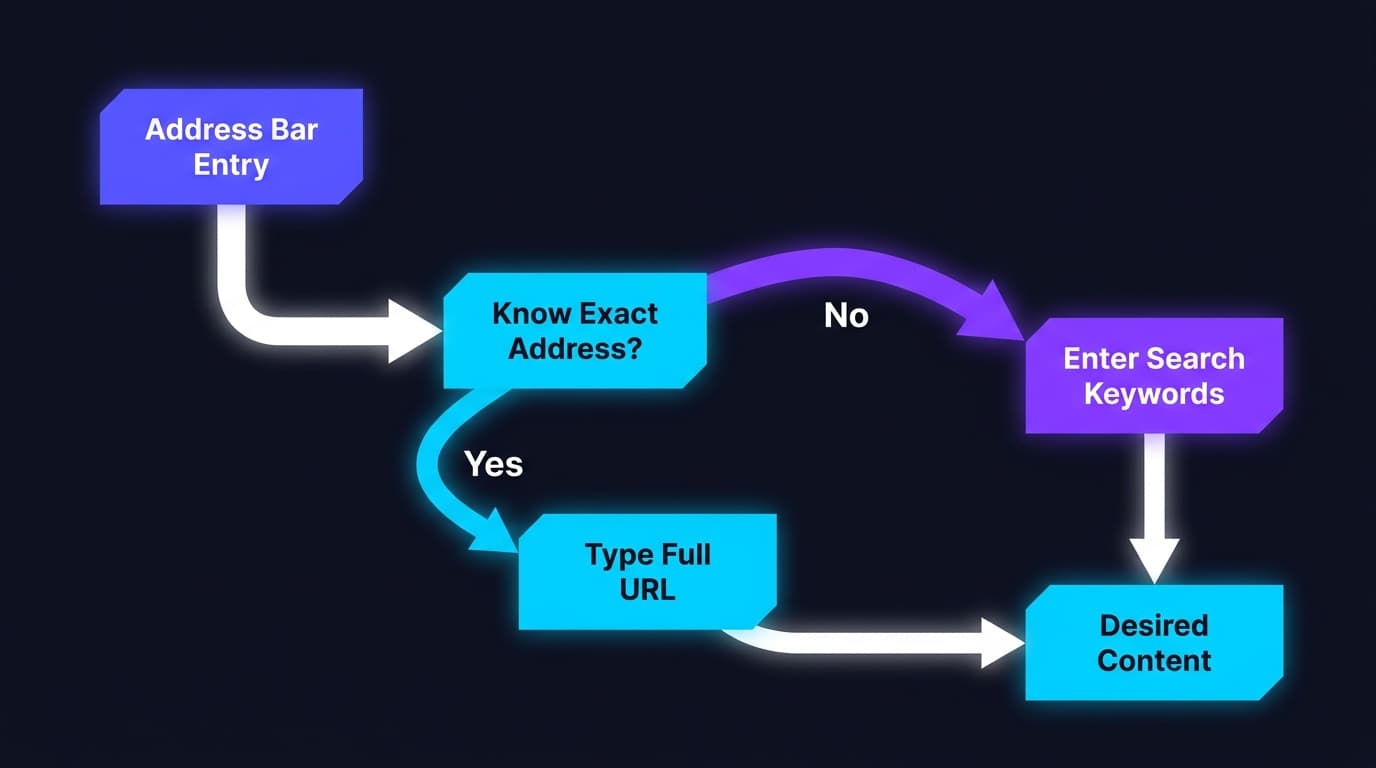
Search when you are still looking. Use a search query any time you do not know the exact address, want to compare options, are troubleshooting a problem, or are exploring a topic. The search engine's job is to find the best match for your words.
Good search examples:
best budget laptops for students india 2026how to stop Chrome redirectsrestaurants near Connaught Place open now
Type a URL when you know exactly where you are going. Direct navigation is faster. You skip the results page entirely, and you land exactly where you intended.
Good direct URL examples:
gmail.comreddit.com/r/smallbusinesssupport.apple.com
For site owners, this distinction carries real strategic weight. People who type your URL directly are already loyal visitors. Their visits show up as direct traffic in Google Analytics. People who find you through search are still choosing between you and your competitors. Understanding how Google AI Overviews affect organic rankings helps you see why the search side of this equation is only getting more competitive.
How to Fix Browser Address Bar Problems
Why Did My Browser Start Searching Instead of Navigating?
This happens for four consistent reasons, and each one has a clean fix.
The input was ambiguous. amazon is a word. amazon.com is an address. Chromium's documentation is explicit that single-word input is the hardest case and the browser often defaults to search. Fix: always include the domain extension.
Autocomplete grabbed the wrong suggestion. Sometimes the live suggestions highlight a search query instead of the URL you intended. In both Chrome and Firefox, you can delete a bad suggestion by highlighting it in the dropdown and pressing Shift + Delete.
Your default search engine changed. Check Settings and your installed extensions. Firefox notes that extensions can alter your default search engine without obvious warning. If you changed it and it keeps reverting, something else is overriding your preference.
Your browser may be hijacked. Chrome warns explicitly that if you try to change your search engine and it will not stick, malware may be involved. Firefox's search hijacking support guide defines hijacking as third-party software changing your browser settings without permission to force ads, paid links, or fake results.
Step-by-Step: How to Fix a Hijacked Browser
If your default search engine changed on its own, your homepage shifted without your input, or typing an address redirects you somewhere unexpected, work through this sequence in order.
For Chrome:
- Open
chrome://extensionsand remove any extension you did not intentionally install or no longer recognize. - Go to
Settings > Search engineand set it back to Google (or your preferred engine). If it reverts after you close the browser, an extension is overriding it. - Go to
Settings > Reset and clean up > Restore settings to original defaults. This resets your startup page, new tab page, search engine, and pinned tabs. It does not delete your bookmarks or passwords. - Run a malware scan. Malwarebytes has a free version that catches the majority of browser-hijacking software. Chrome also has a built-in cleanup tool at
Settings > Reset and clean up > Clean up computer.
For Firefox:
- Open
about:addonsand remove unfamiliar extensions. - Go to
Settings > Searchand reset your default search engine. - Open
about:support, then click Refresh Firefox. This resets Firefox to factory settings while preserving your bookmarks and browsing history. - Run Malwarebytes or your preferred scanner.
For Microsoft Edge:
- Open
edge://extensionsand remove anything suspicious. - Go to
Settings > Privacy, search, and services > Address bar and searchand reset your search engine. - Go to
Settings > Reset settings > Restore settings to their default values. - Run a malware scan.
One important caveat: if you are on a work or school device, your IT administrator may be controlling your browser settings through policy. Locked settings are not always malware. Sometimes they are just your company's IT configuration, and the right call is to contact your help desk rather than reset the browser yourself.
Common Warning Signs of Browser Hijacking
- Your homepage changed without your action.
- Your default search engine switched to something unfamiliar (Ask, Bing when you prefer Google, or an engine you have never heard of).
- Typing a web address redirects you to a different site.
- A toolbar or extension appeared without you installing it.
- Your browser settings will not save, or revert immediately after you change them.
How to Turn Off Search Suggestions and Reduce Tracking
Every browser sends your keystrokes to the default search engine as you type, when suggestions are enabled. Chrome's settings documentation confirms that typed characters go to your search engine along with your IP address and cookies. Firefox's suggestion documentation confirms the same. Safari says suggestions may record your search terms.
To disable this in Chrome: go to Settings > You and Google > Google services and turn off Improve search suggestions.
To disable this in Firefox: go to Settings > Search and uncheck Provide search suggestions.
To disable this in Edge: go to Settings > Privacy, search, and services and turn off Show me search and site suggestions using my typed characters.
To disable this in Safari: go to Settings > Search and uncheck Include Search Engine Suggestions.
Disabling suggestions does not break the address bar. You can still search google or type a url normally. You just will not see live completions as you type.
How to Change Your Default Search Engine, Browser by Browser
You cannot remove the "Search Google or type a URL" prompt itself. It is a built-in label, not a setting. What you can control is which search engine runs when you type words, which page opens on startup, and how much data the browser sends while you type.
Chrome: Go to Settings > Search engine. You can switch to Bing, DuckDuckGo, Yahoo, Ecosia, or any other engine in the list. Chrome documents this setting fully and also lets you set different engines for regular and Incognito mode.
Firefox: Go to Settings > Search. Firefox gives you the most control here: you can change the default engine, remove engines from the list entirely, and set a different engine specifically for private browsing windows. Firefox's search settings documentation covers all of this.
Microsoft Edge: Go to Settings > Privacy, search, and services > Address bar and search. Edge defaults to Bing but switches cleanly to Google or any other listed engine.
Safari: Go to Settings > Search > Search Engine on Mac. On iPhone and iPad, go to Settings > Apps > Safari > Search Engine. Options include Google, Yahoo, Bing, DuckDuckGo, and Ecosia.
Brave: Go to Settings > Search engine. Brave defaults to Brave Search. Switching to Google or DuckDuckGo is a single click.
Why This Matters for SEO and Website Owners
Most guides treat "search google or type a url" as purely a user question. For anyone running a website, the browser address bar behavior is actually a traffic attribution issue.
When a user types your URL directly and presses Enter, that visit lands in Google Analytics as direct traffic. When a user searches for your brand name and clicks your result, it shows up as organic search. The distinction matters because direct traffic signals brand recognition and loyalty, while organic search traffic reflects how well you rank for queries.
Here is the problem: some direct traffic is mislabeled. If a user clicks a link in an email client, a PDF, a Slack message, or certain HTTPS-to-HTTP transitions, the referrer data gets stripped and the visit registers as direct even though the user never typed your URL. Google Analytics 4 improved this attribution compared to Universal Analytics, but the issue is not fully resolved.
For marketers and founders: if your direct traffic is unusually high relative to your brand awareness, audit your UTM tagging. Links in email campaigns, PDFs, and internal tools should always carry UTM parameters so that traffic gets attributed correctly instead of pooling in direct.
The second implication is more obvious. If users are searching for your brand name rather than typing your URL, your site needs to appear first for that brand query. A competitor's paid ad appearing above your organic result for your own brand name is a real problem, and it costs you clicks that should have been automatic. This is one concrete reason why understanding how the browser routes searches versus direct navigation has downstream SEO consequences.
Understanding how AI is changing the way users discover content is directly relevant here. The strategies for ranking in Google AI Overviews apply to the same users who are shifting from typing URLs to asking AI assistants questions directly in the address bar.
Frequently asked questions
What does it mean to "search Google or type a URL"?
"Search Google or type a URL" is a label Chrome displays in its address bar to explain that one field handles two functions. Type a web address (like gmail.com) to go directly to a site, or type words and questions to search Google. Every major browser uses this dual-purpose address bar, though the exact wording varies.
Why does typing a site name sometimes search instead of going to the site?
Your browser uses pattern-matching rules to decide between searching and navigating. Single-word input like amazon is ambiguous and often triggers a search. Adding the domain extension (amazon.com) makes the intent clear and sends you straight to the site. You can also press Ctrl + Enter on Windows (Cmd + Return on Mac) in Chrome to auto-add www. and .com.
How do I stop Chrome from changing my search engine back?
If your search engine reverts after you change it, an extension is almost certainly overriding your setting. Open chrome://extensions and remove anything unfamiliar. If the problem persists, go to Settings > Reset and clean up > Restore settings to original defaults, then run a malware scan with a tool like Malwarebytes. Chrome's own support documentation identifies this pattern as a potential malware indicator.
Is it safe to type URLs in the address bar, or is my data being collected?
When search suggestions are enabled, your keystrokes are sent to your default search engine as you type, along with your IP address and cookies. This applies to Chrome, Firefox, Edge, and Safari. You can disable suggestions in each browser's settings to stop that data flow. The address bar continues to work normally; you just lose live completions.
What's the difference between direct traffic and organic search in analytics?
Direct traffic means a visitor typed your URL into their address bar (or used a bookmark) and arrived without a referrer. Organic search means they found you through a search engine result. Direct traffic signals brand recognition. Organic traffic reflects your search rankings. Some direct traffic is actually mislabeled due to stripped referrer data from emails, PDFs, and messaging apps, so always use UTM parameters on links outside your website.
Why did my browser settings change on their own?
Unexpected changes to your homepage, default search engine, or new tab page are the three classic signs of browser hijacking. Firefox's support documentation on search hijacking explains that third-party software sometimes changes browser settings without permission to display ads or redirect traffic. The fix is to remove suspicious extensions, reset browser settings, and run a malware scan. On managed devices, IT policy may also lock certain settings, which is not malware.
How do I fix a hijacked browser address bar in Chrome?
Remove unfamiliar extensions at chrome://extensions, then go to Settings > Search engine and reset your default. If it reverts, go to Settings > Reset and clean up > Restore settings to original defaults. Finally, run Chrome's built-in cleanup tool at Settings > Reset and clean up > Clean up computer and supplement it with a Malwarebytes scan. Work through all four steps in sequence rather than skipping to the reset.
Does the address bar in 2026 work differently because of AI?
Yes, meaningfully so in Chrome. Google's Gemini AI integration surfaces suggestions and completions in the Chrome address bar that go beyond your browsing history, using generative AI to anticipate queries. Brave defaults to Brave Search rather than Google. Arc browser rethinks the address bar concept almost entirely. For users and site owners alike, the address bar is no longer a neutral pipe: the AI layer in it shapes which sites and queries get suggested before a user even finishes typing.
What is the omnibox?
The omnibox is Chrome's internal name for the address bar that combines URL navigation and web search in a single field. The term comes from Chromium's design documentation. Firefox calls its equivalent the Awesome Bar, Safari calls it the Smart Search Field, and Edge uses the phrase Smart Address Bar. All four operate on the same dual-purpose principle.
If you are working on improving how your site appears when users do search google or type a url and land on your pages through organic results, start with how your content performs in AI-powered search. Project Rankup helps small businesses and marketing teams improve their visibility in Google Search and AI Overviews, from technical fixes like indexability to content structured to win featured snippets.